1
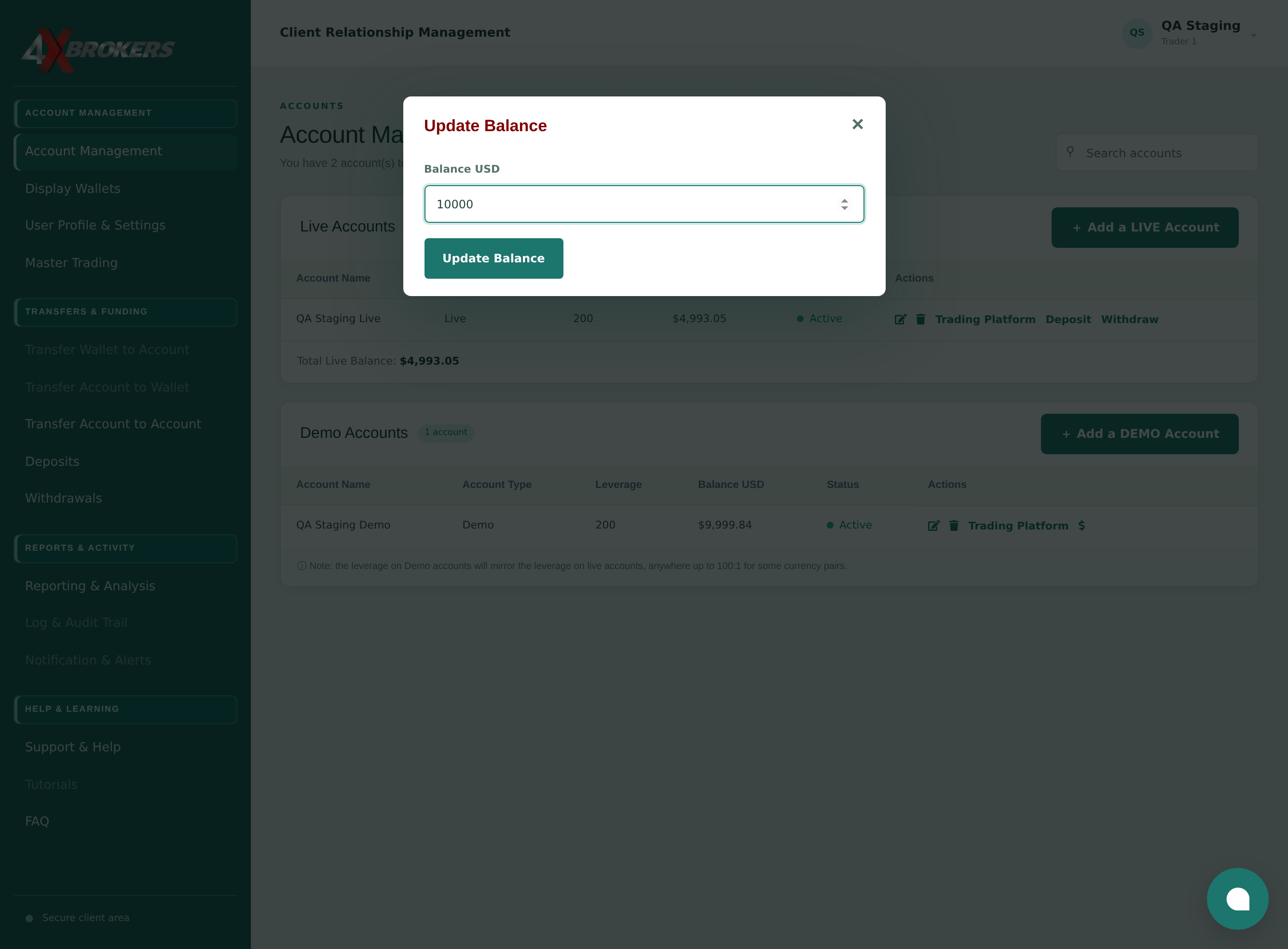
Open Account Management.
Your demo accounts are listed under Demo Accounts, below your live accounts.
Trading Help Center › Funding your account
Set the virtual balance of a demo account, for example to fund a new practice account or to start over.
How to use this guide: Follow the numbered steps in order. Each heading names the button, field or control to use, the note below it explains what happens, and the pointer on the screenshot shows exactly where to click.
5 Step-by-step guide
Set the virtual balance of a demo account, for example to fund a new practice account or to start over.
Your demo accounts are listed under Demo Accounts, below your live accounts.
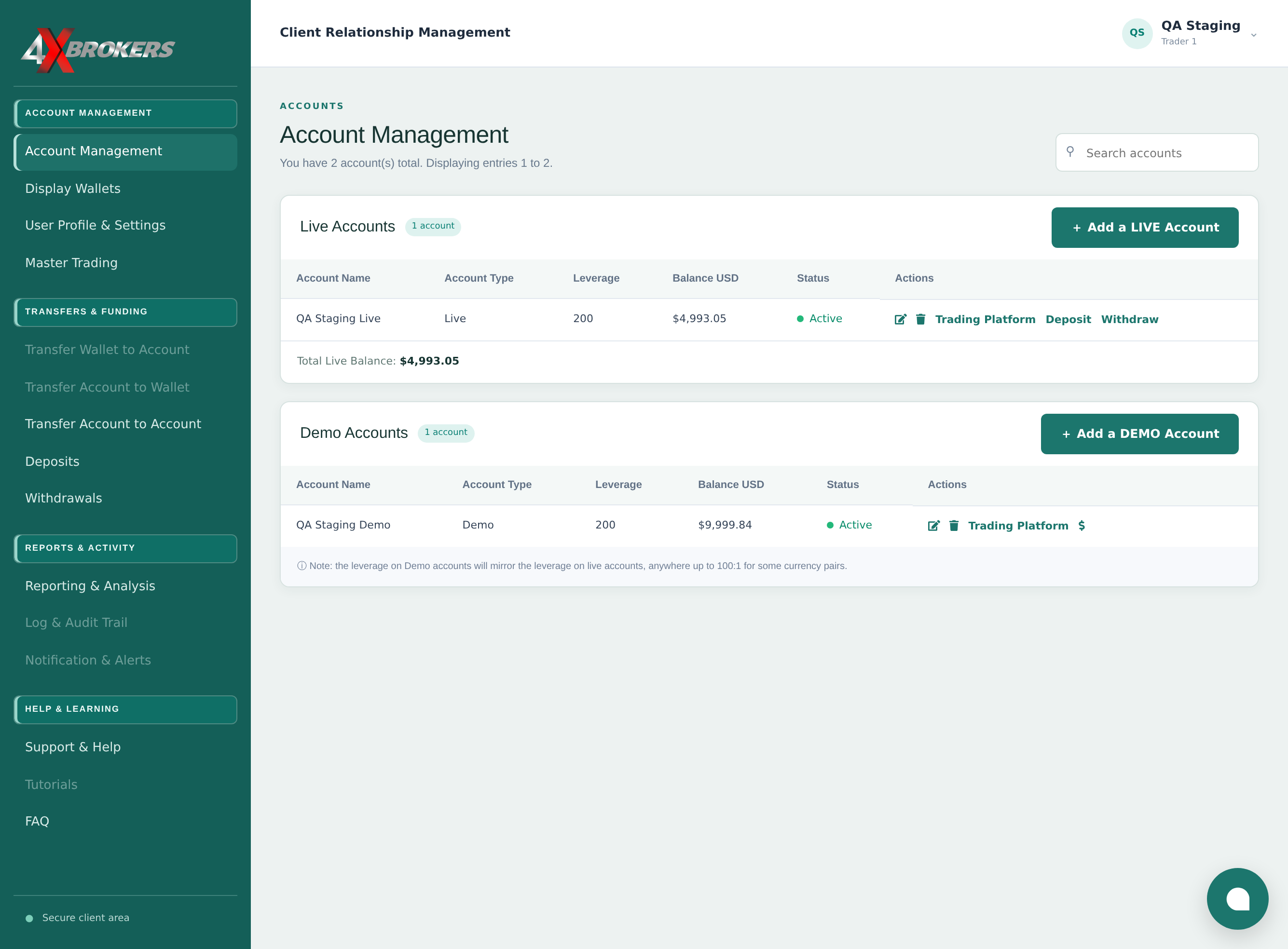
The $ icon is only shown for demo accounts. It opens a window where you set the account's virtual balance.
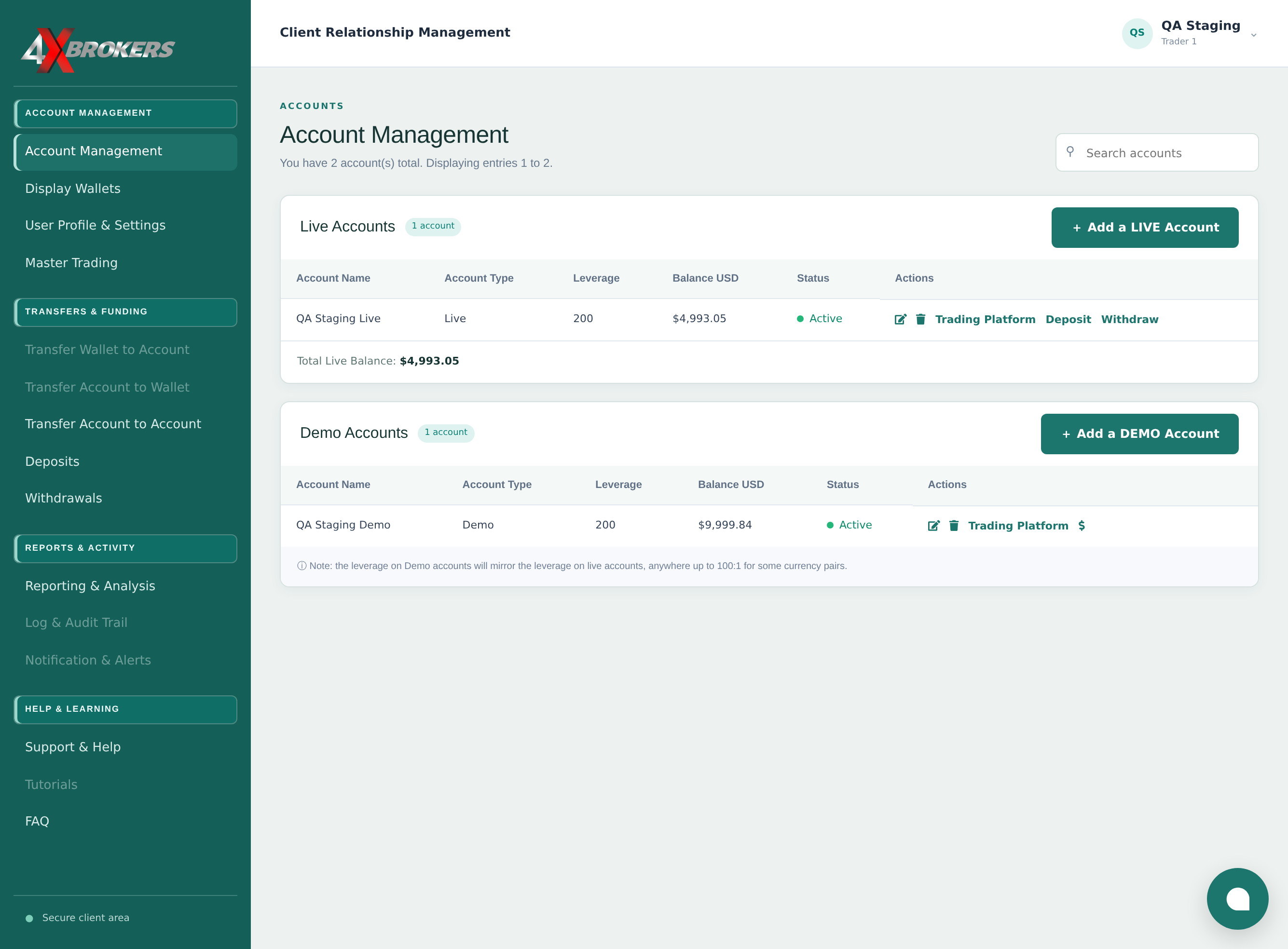
Type the full amount you want the account to have, not the amount to add. The funds are virtual and cannot be withdrawn.
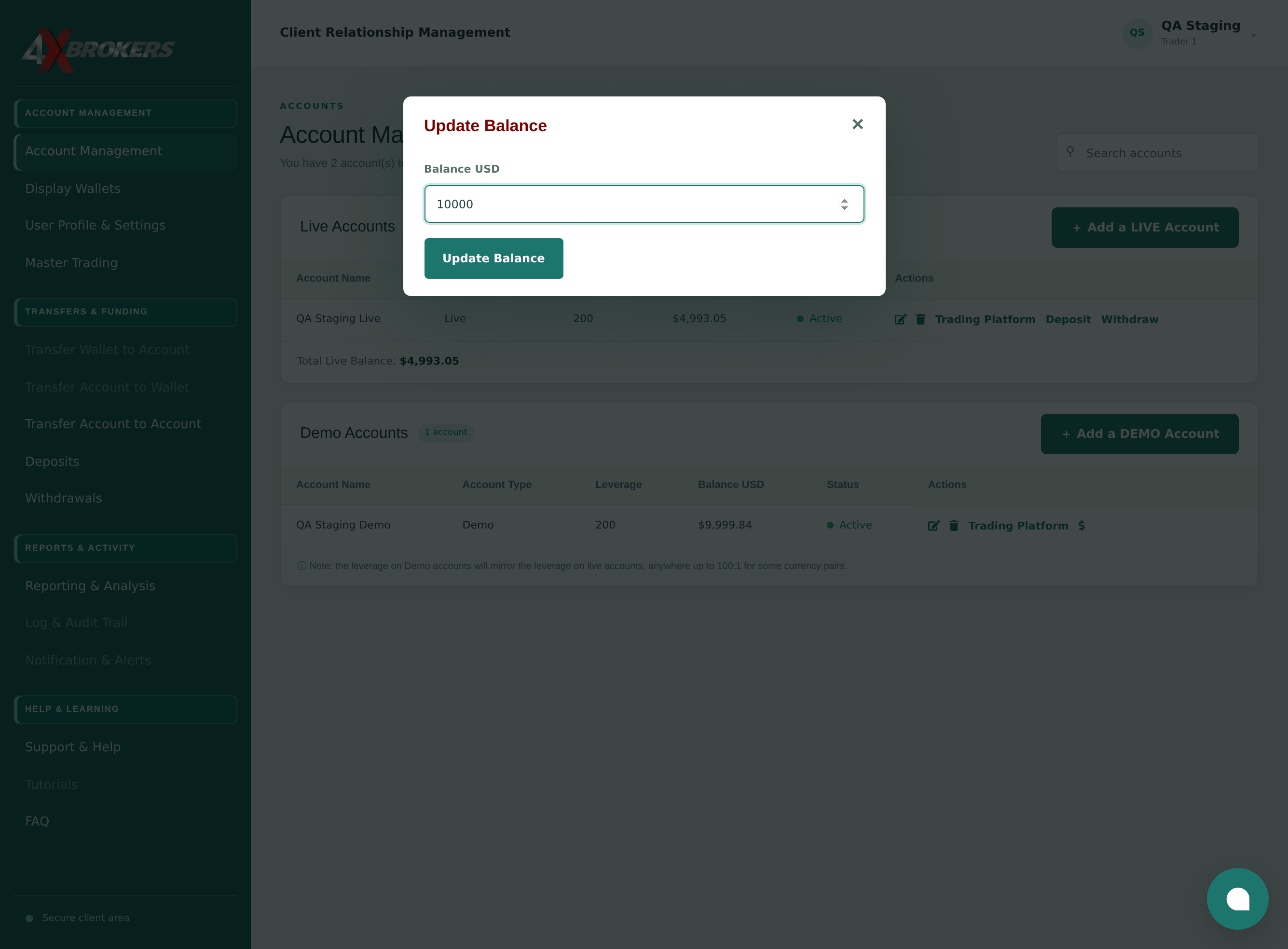
The new balance is shown in the account list straight away and is used the next time you open the trading platform.