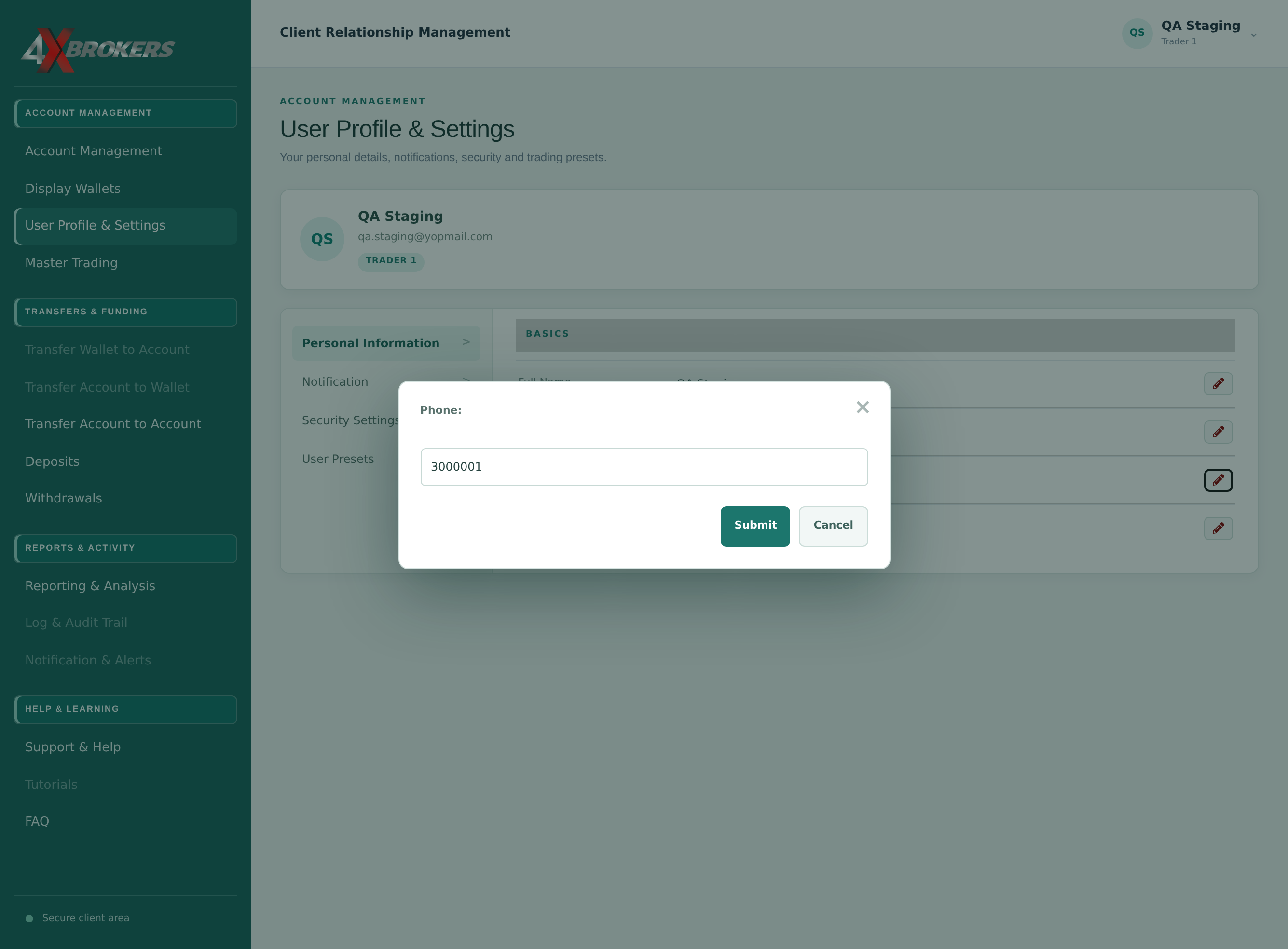
1
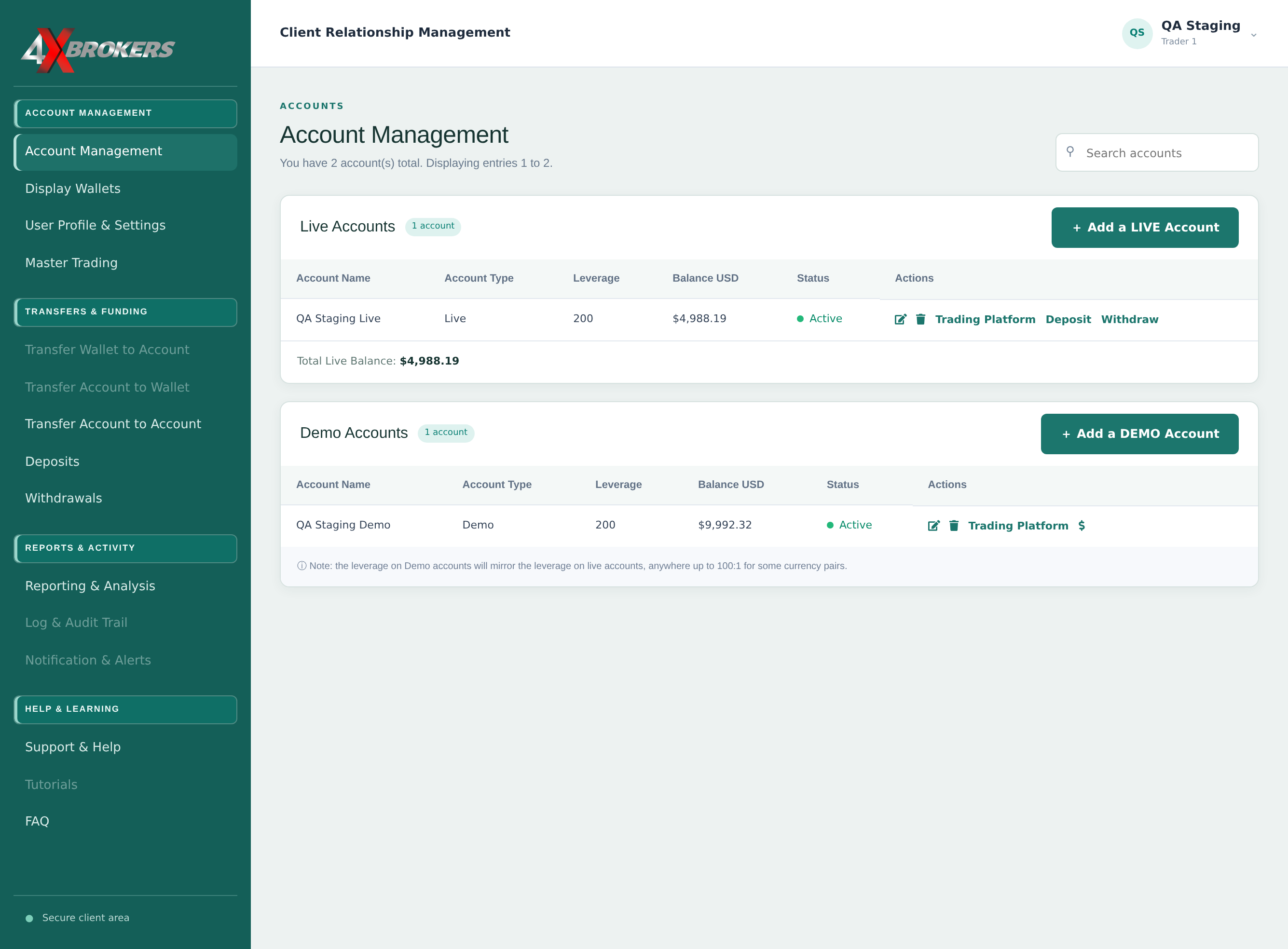
Open User Profile & Settings.
It is in the Account Management section of the left-hand menu.
Trading Help Center › Accounts & settings
Change the contact details on your profile, such as your phone number or address.
How to use this guide: Follow the numbered steps in order. Each heading names the button, field or control to use, the note below it explains what happens, and the pointer on the screenshot shows exactly where to click.
9 Step-by-step guide
Change the contact details on your profile, such as your phone number or address.
It is in the Account Management section of the left-hand menu.
Your full name, email, phone and address are listed under Basics.
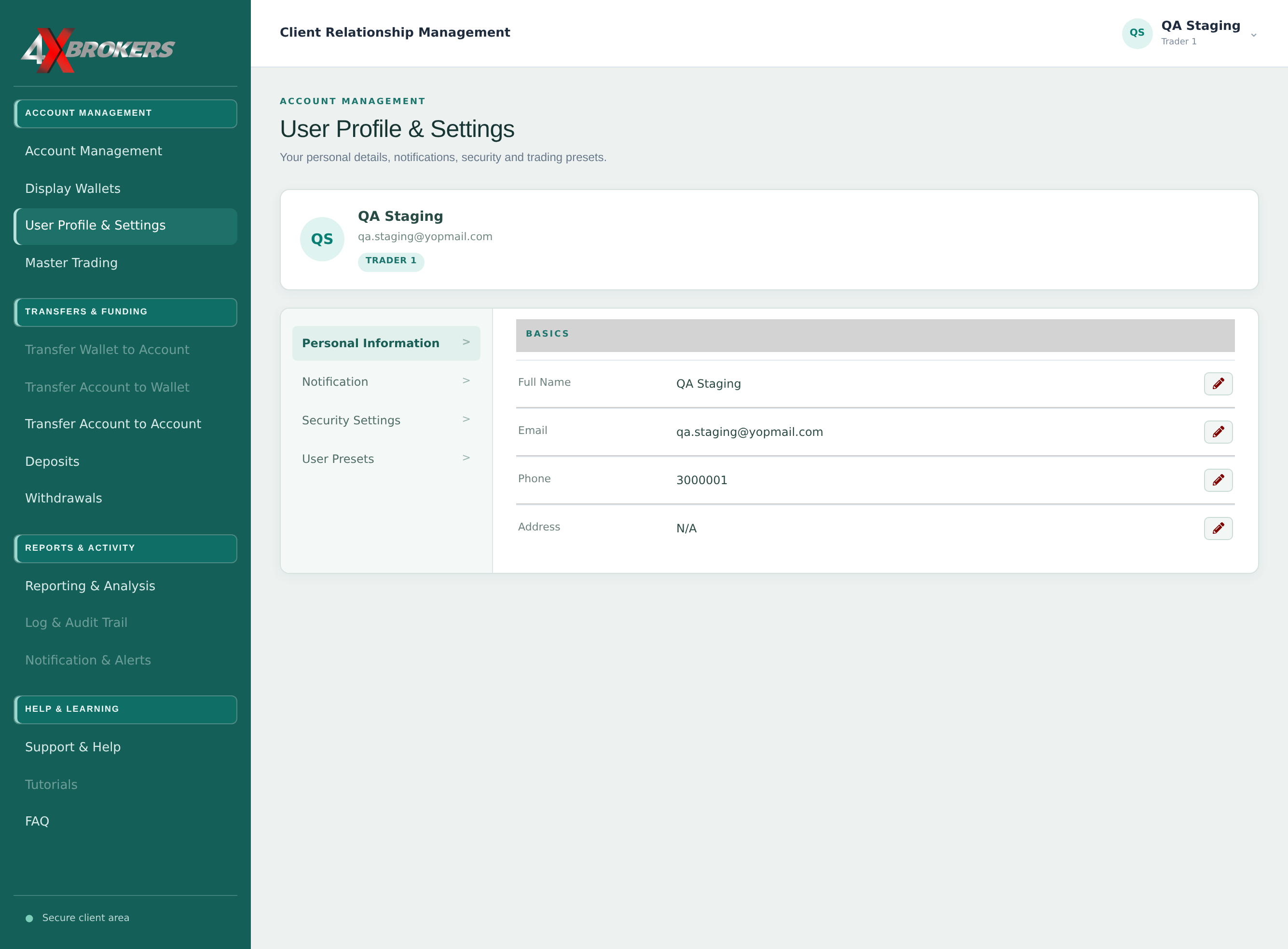
Each detail has its own edit icon on the right.
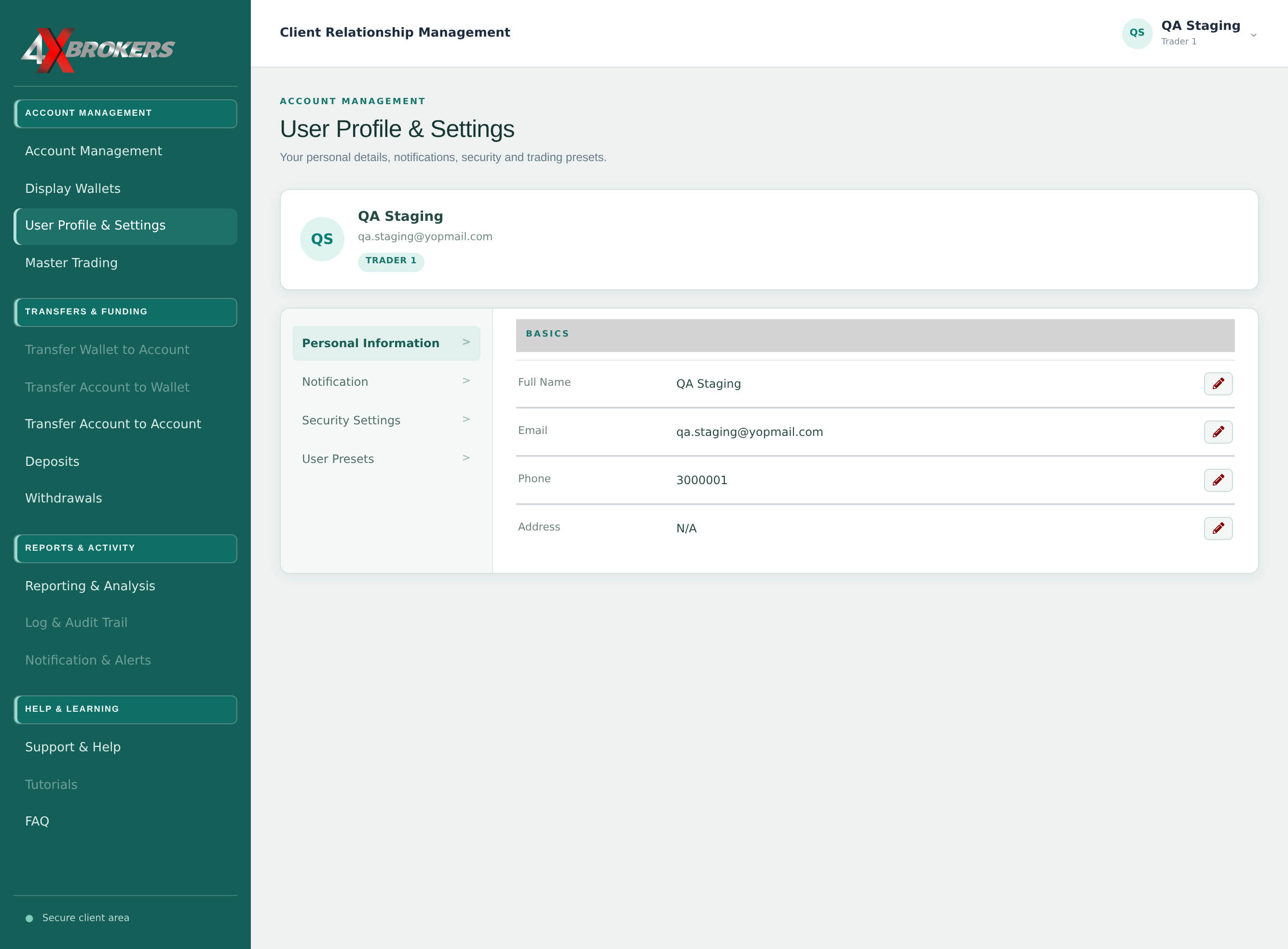
Check it carefully: we use these details to contact you.
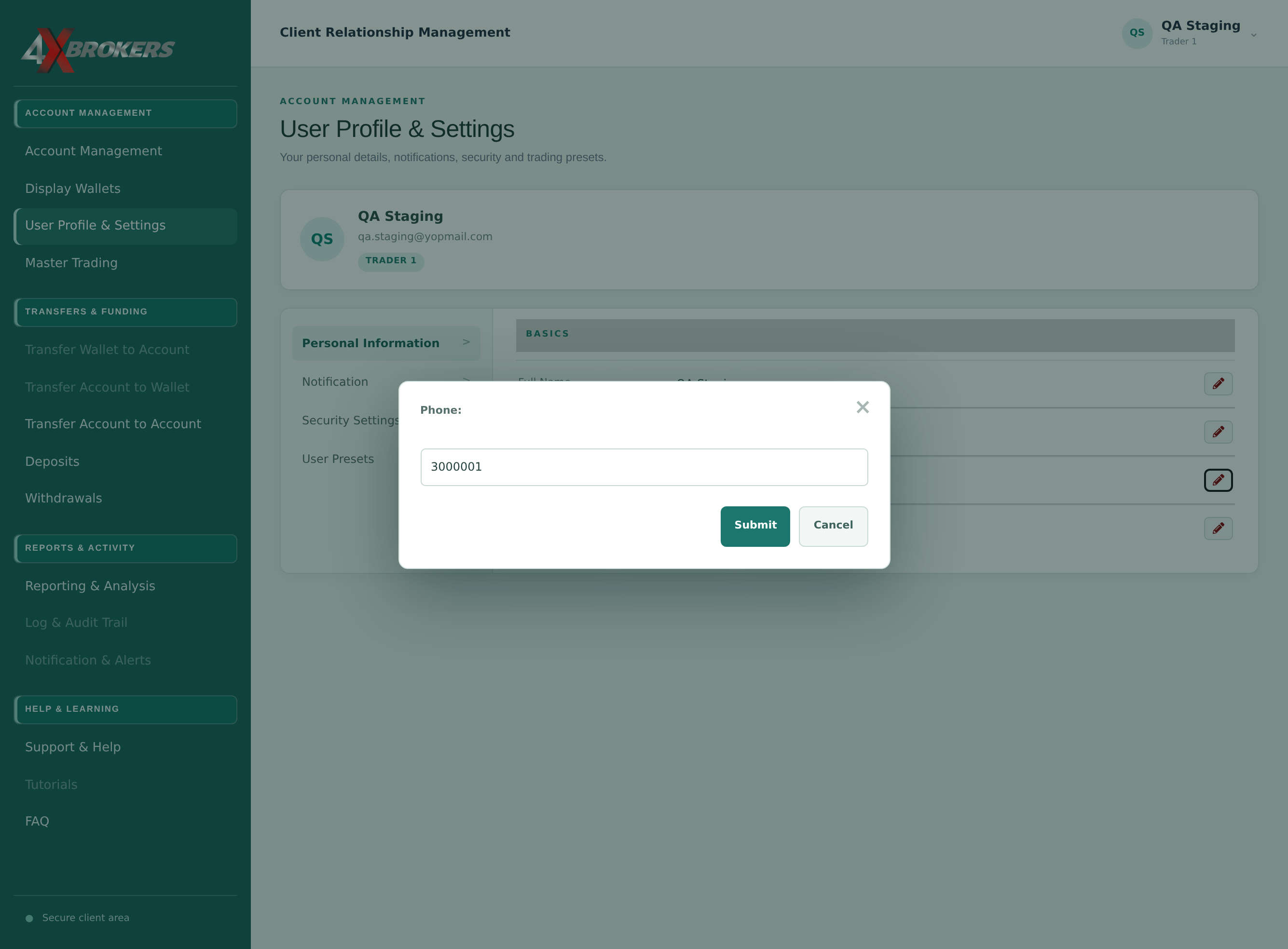
The new value is shown on your profile straight away. Select Cancel to leave it unchanged.