Trading Help Center › Accounts & settings

Change Your Password or Security Questions

Set a new sign-in password, or update the security questions used to confirm it is you.

11 stepsAccounts & settings

How to use this guide: Follow the numbered steps in order. Each heading names the button, field or control to use, the note below it explains what happens, and the pointer on the screenshot shows exactly where to click.

10 Step-by-step guide

Change Your Password or Security Questions

Set a new sign-in password, or update the security questions used to confirm it is you.

1

In User Profile & Settings, select Security Settings.

Both options are on this tab.
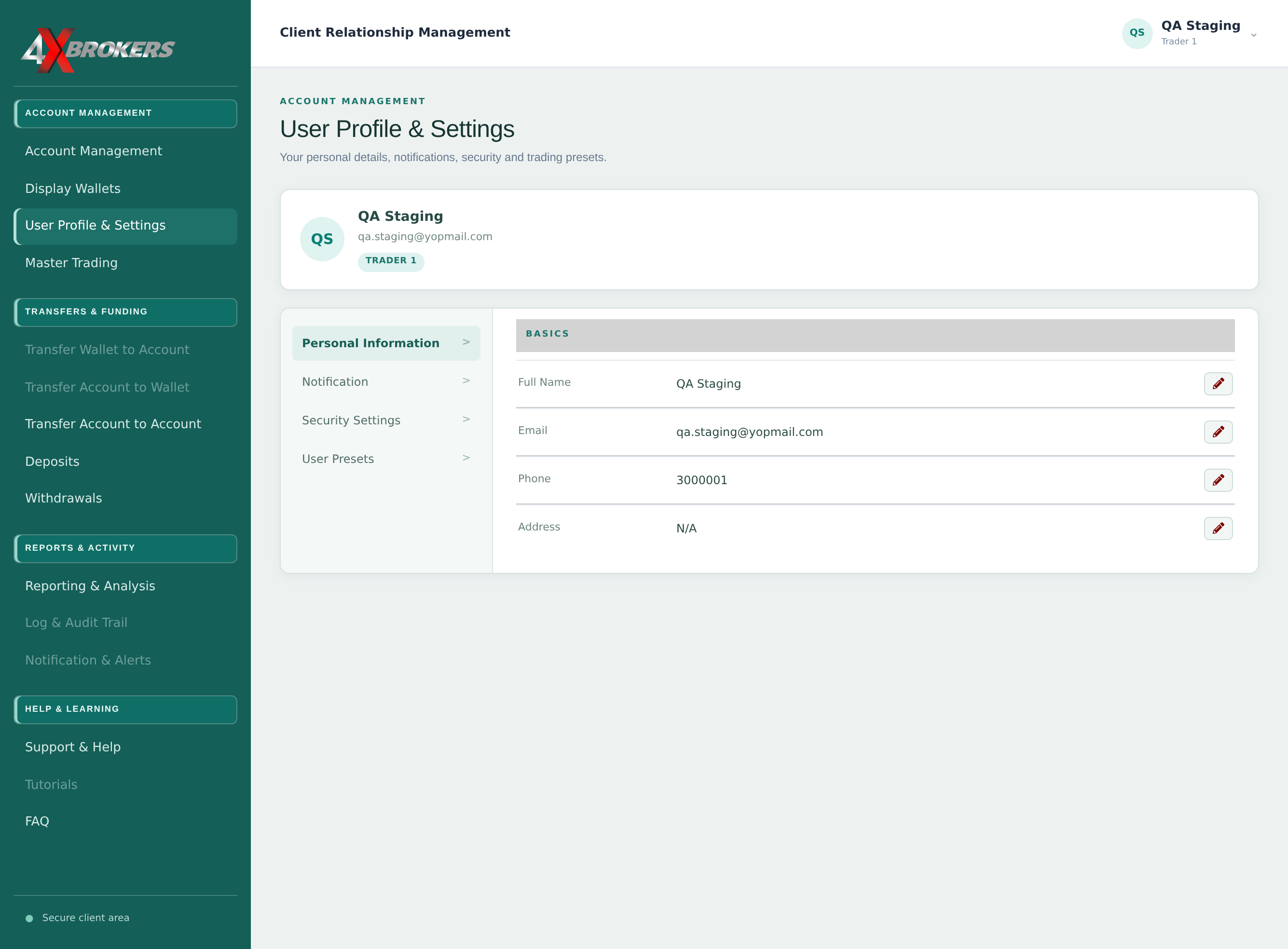
Step 1 · action shown aboveChange Your Password or Security Questions — step 1
2

Select Change Password.

A window opens with three password fields.
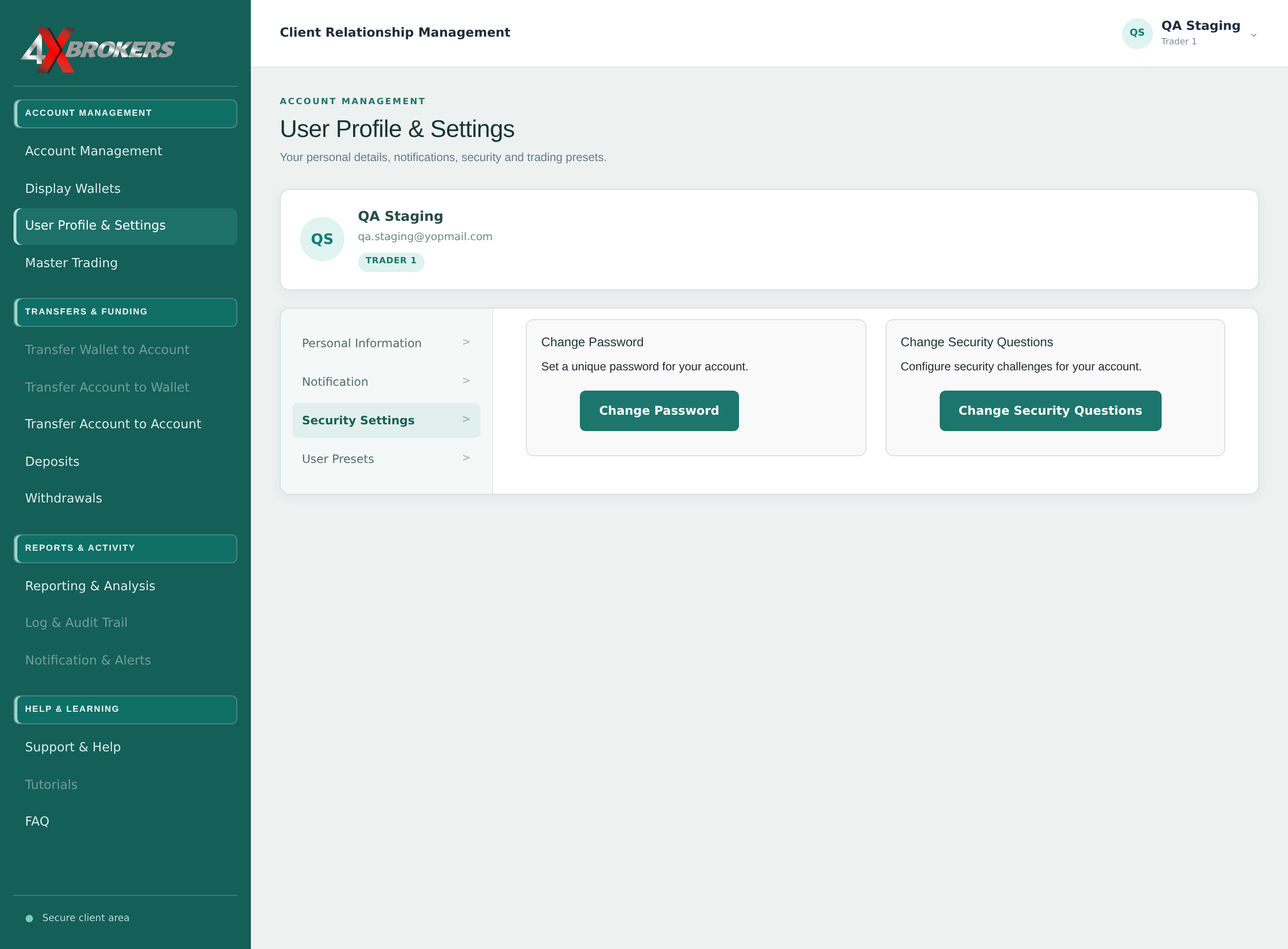
Step 2 · action shown aboveChange Your Password or Security Questions — step 2
3

Enter your Current Password.

This confirms that it is you making the change.
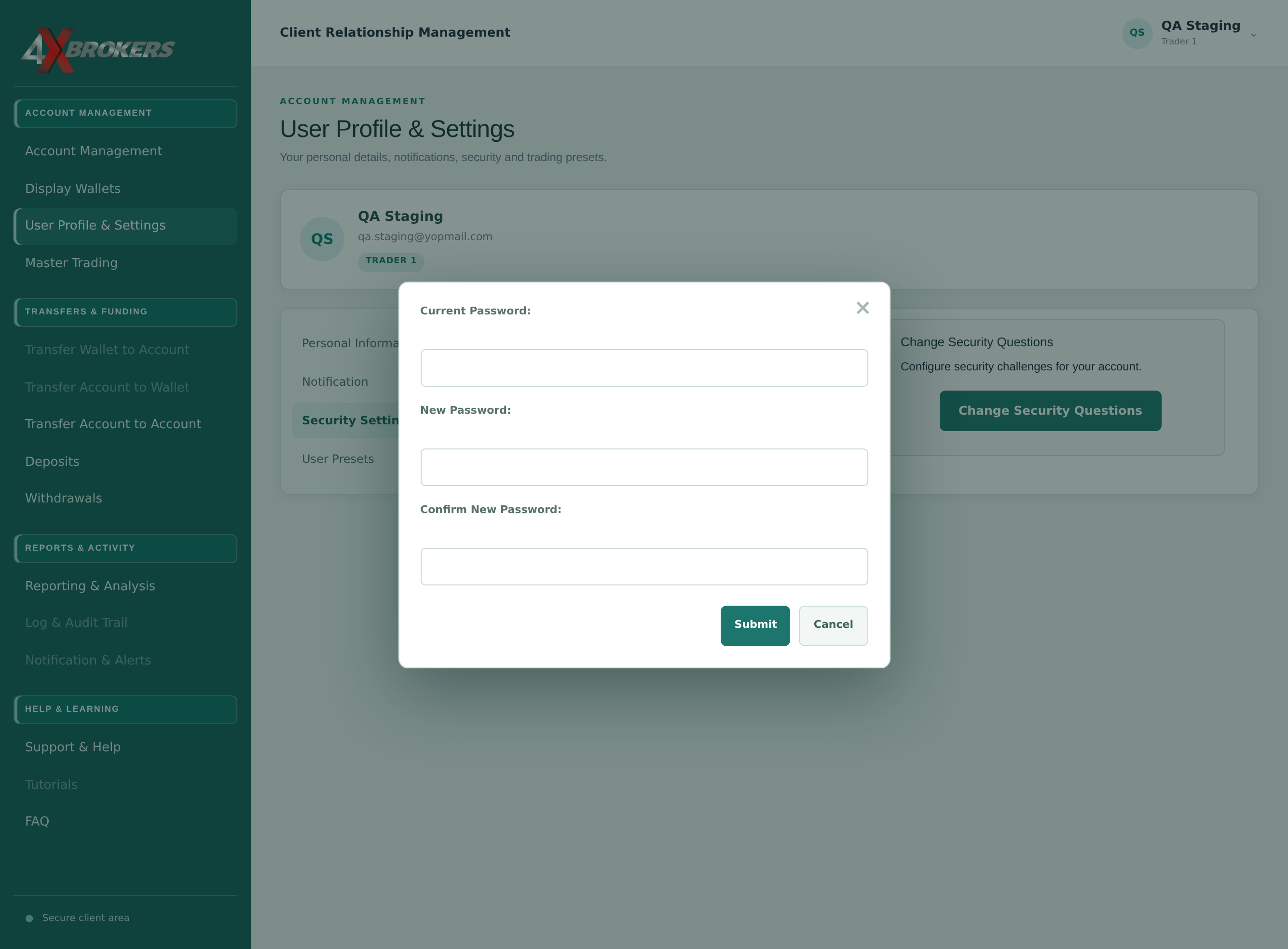
Step 3 · action shown aboveChange Your Password or Security Questions — step 3
4

Enter your New Password.

Choose a password you do not use anywhere else.
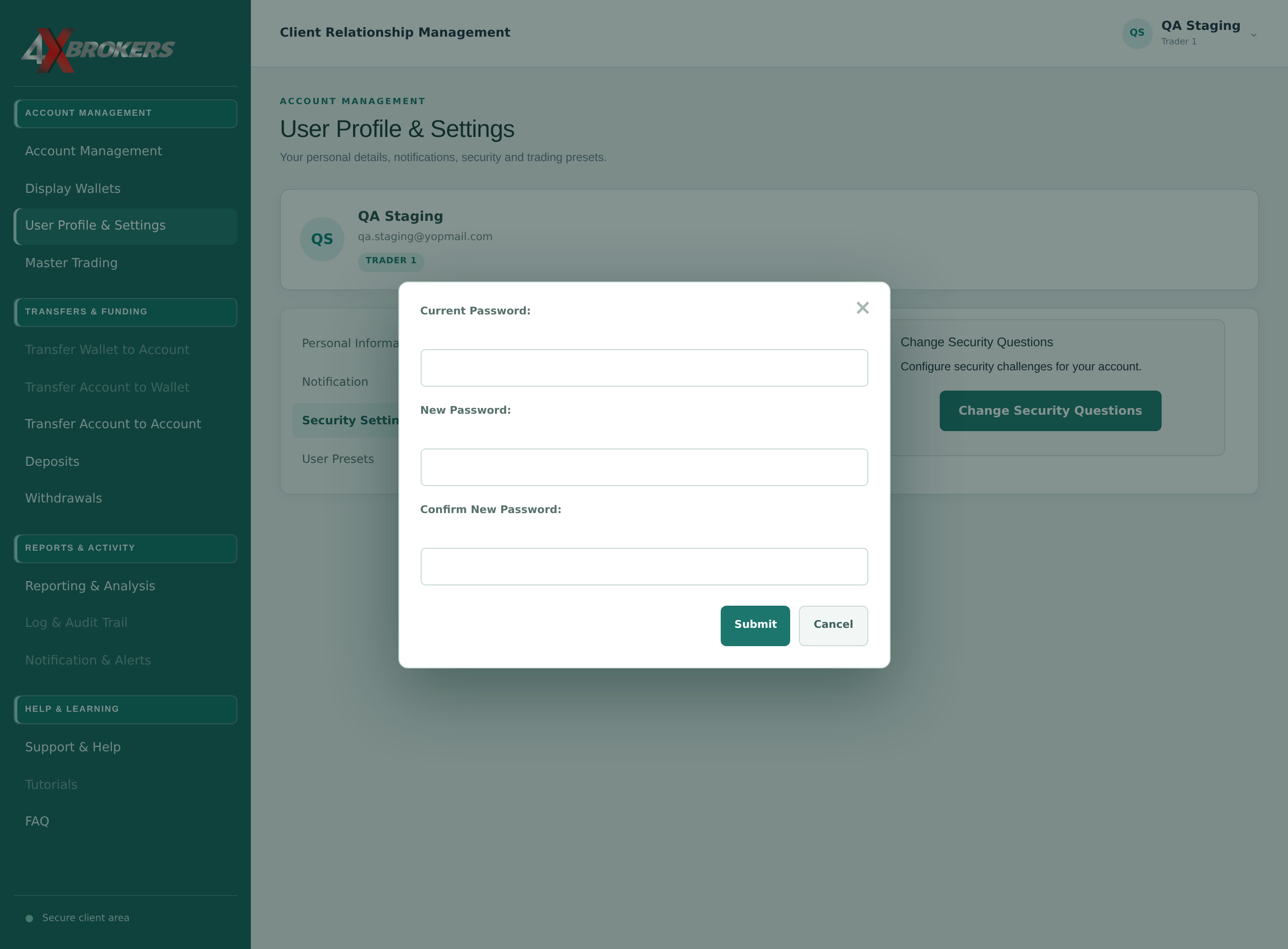
Step 4 · action shown aboveChange Your Password or Security Questions — step 4
5

Enter the new password again in Confirm New Password.

Both entries must match exactly.

Step 5 · action shown aboveChange Your Password or Security Questions — step 5
6

Select Submit.

Use the new password the next time you sign in. Select Cancel to keep your current password.
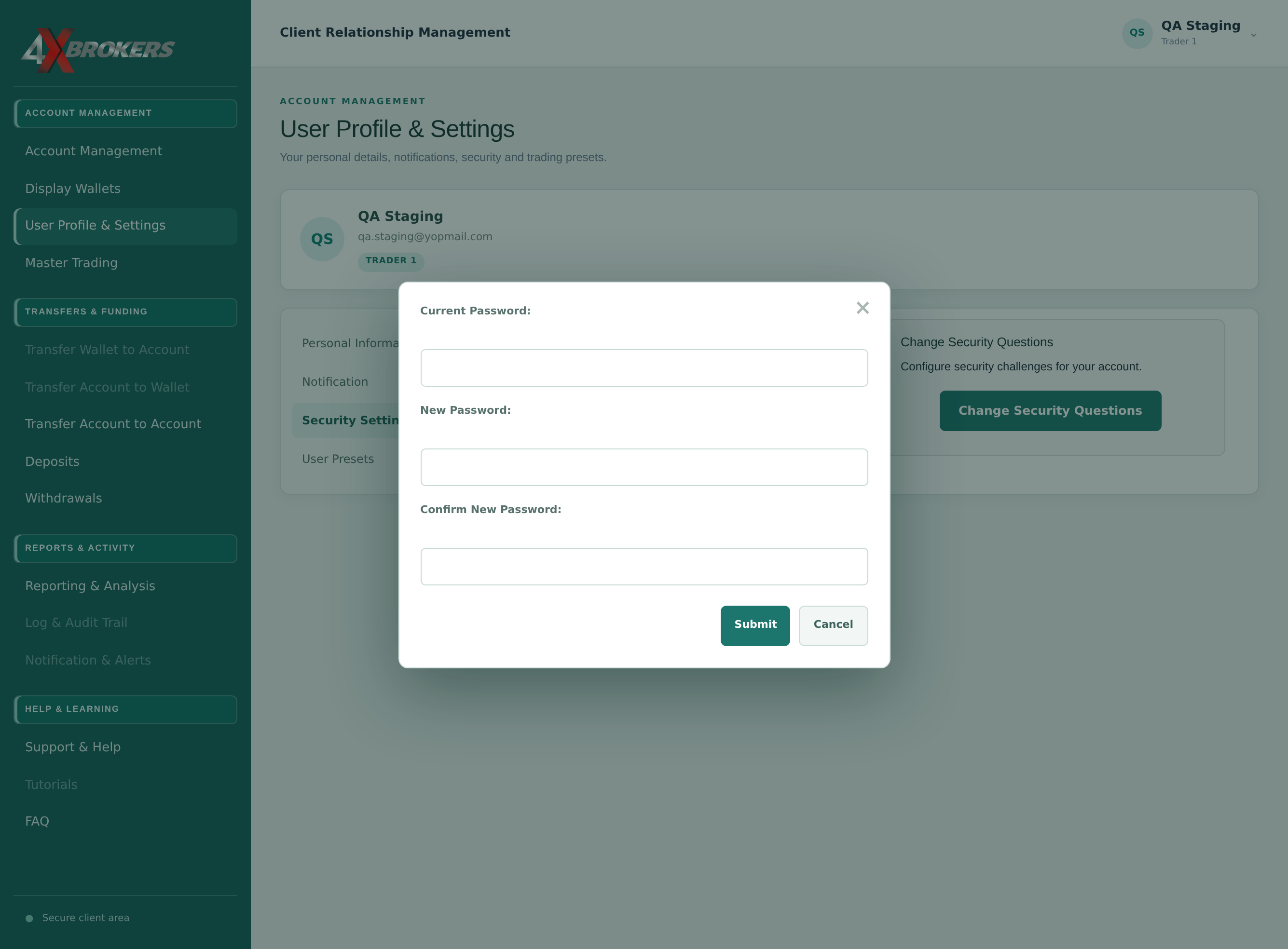
Step 6 · action shown aboveChange Your Password or Security Questions — step 6
7

To update your security questions, select Change Security Questions.

You set three questions, which we use to confirm your identity.
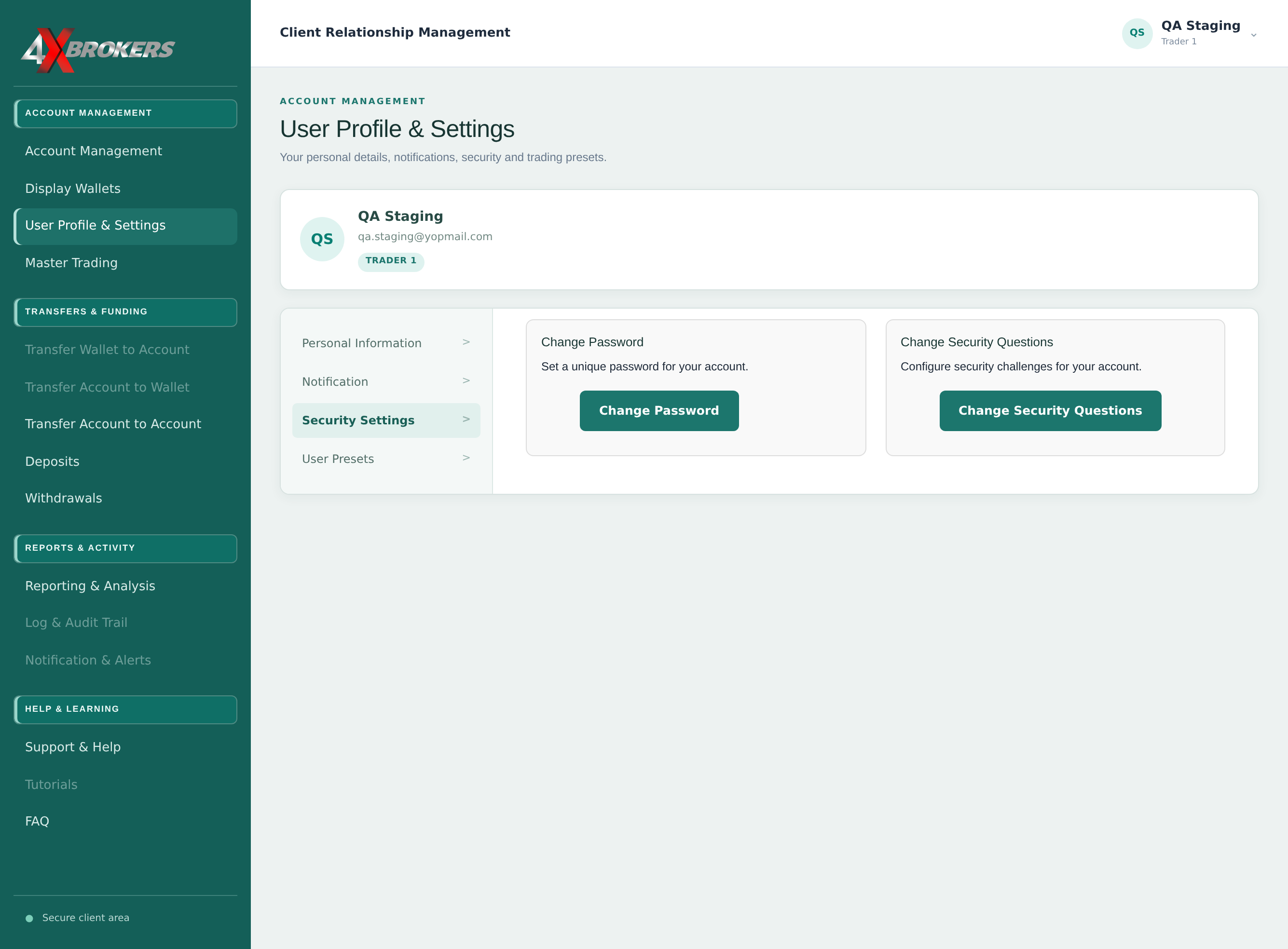
Step 7 · action shown aboveChange Your Password or Security Questions — step 7
8

Choose the Security Question Type for each question.

Pick one of our pre-supplied questions, or create your own.
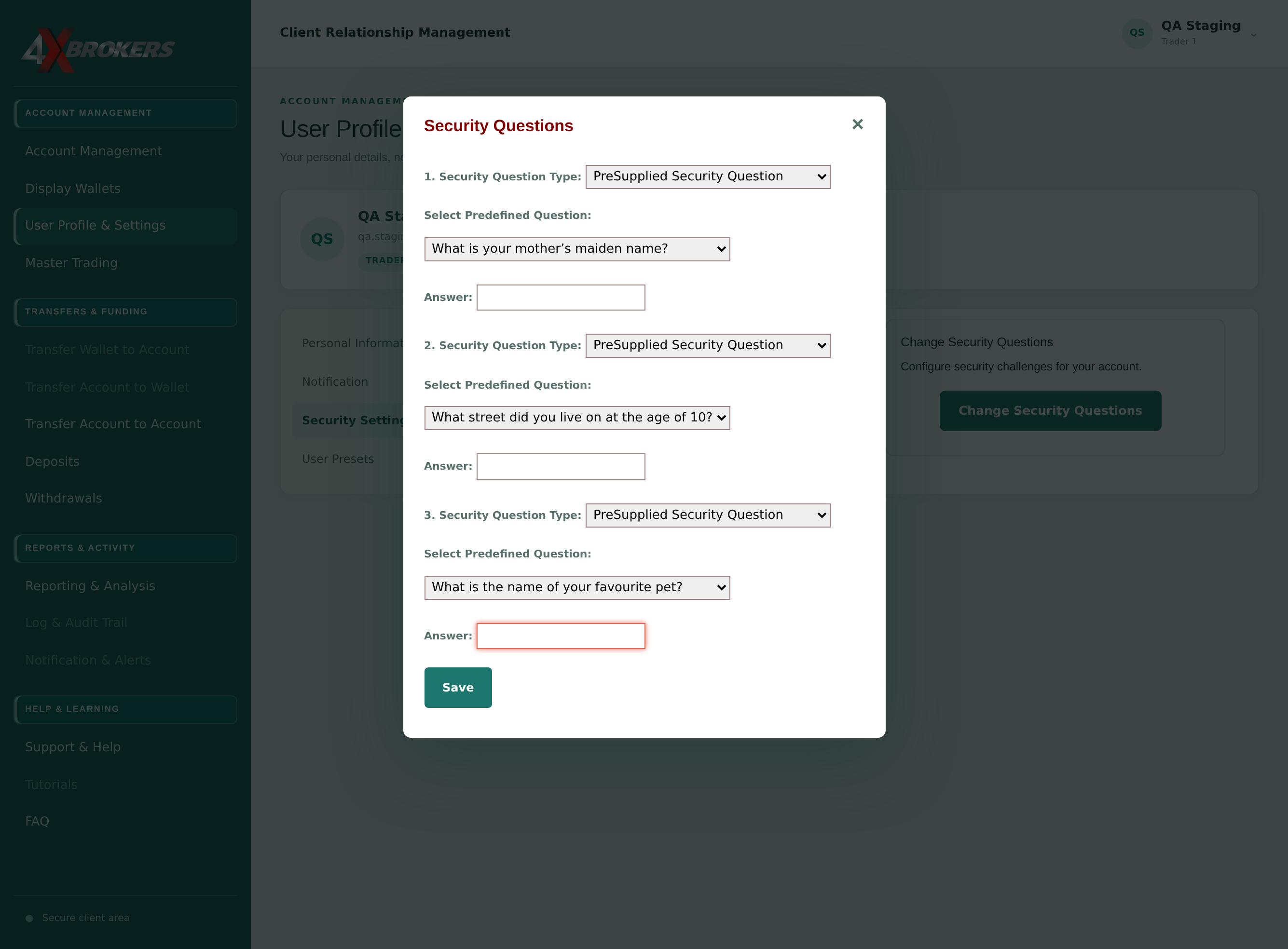
Step 8 · action shown aboveChange Your Password or Security Questions — step 8
9

Choose the question in Select Predefined Question.

Use a question whose answer only you know and will remember.
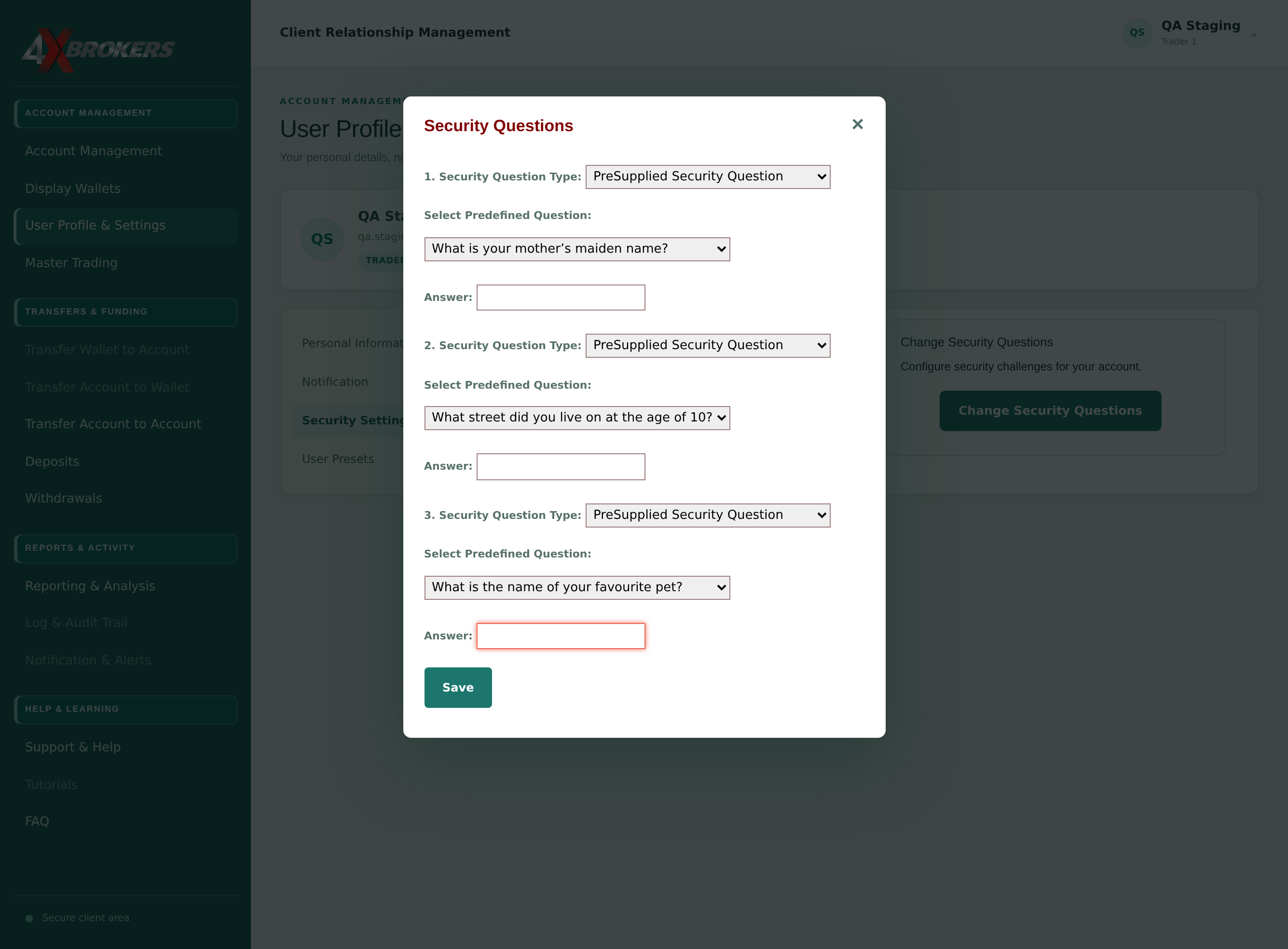
Step 9 · action shown aboveChange Your Password or Security Questions — step 9
10

Enter your Answer.

Remember exactly how you spell it, as you may be asked to type it again.
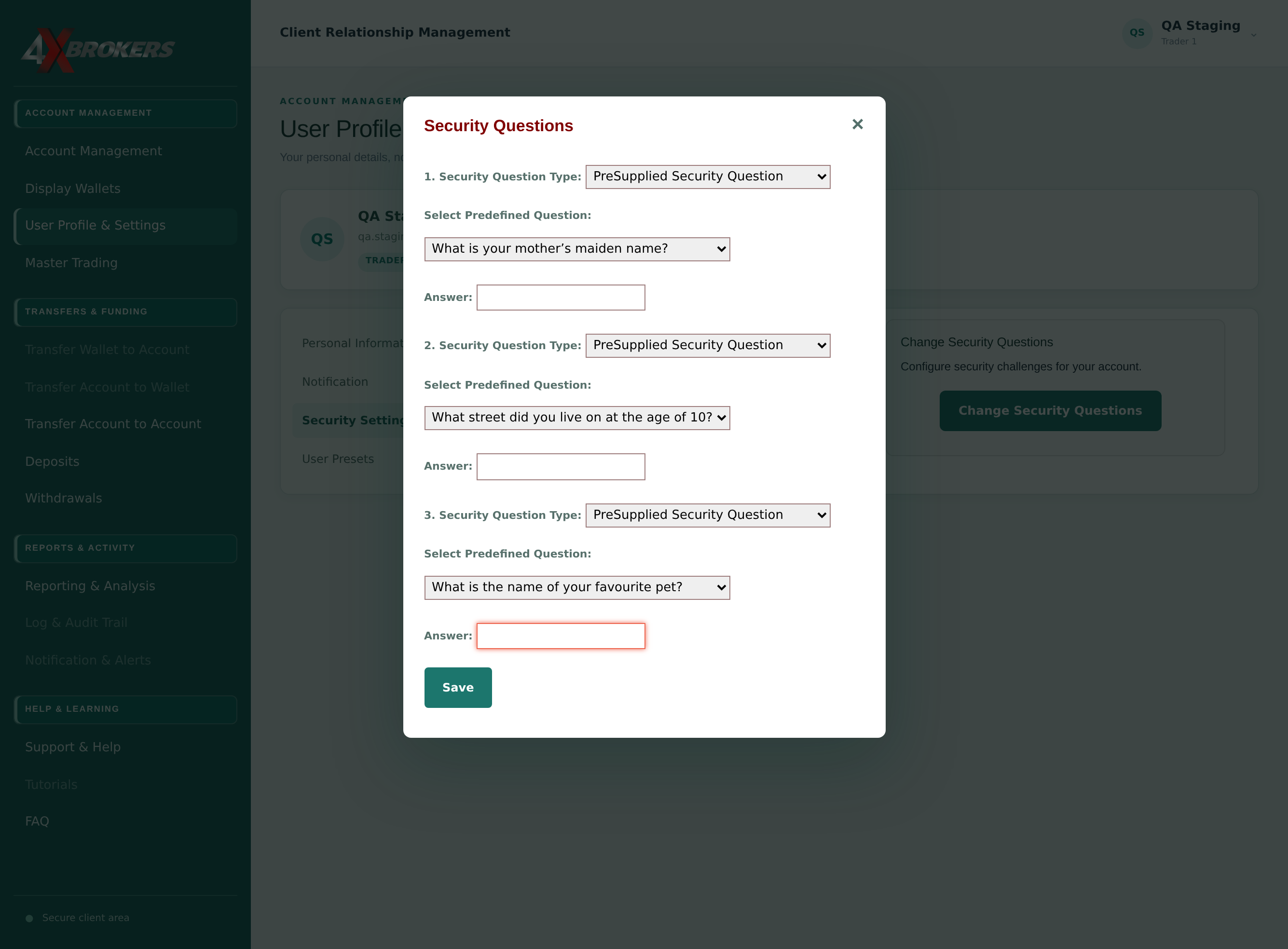
Step 10 · action shown aboveChange Your Password or Security Questions — step 10
11

Select Save when all three questions are set.

Your new questions replace the old ones.
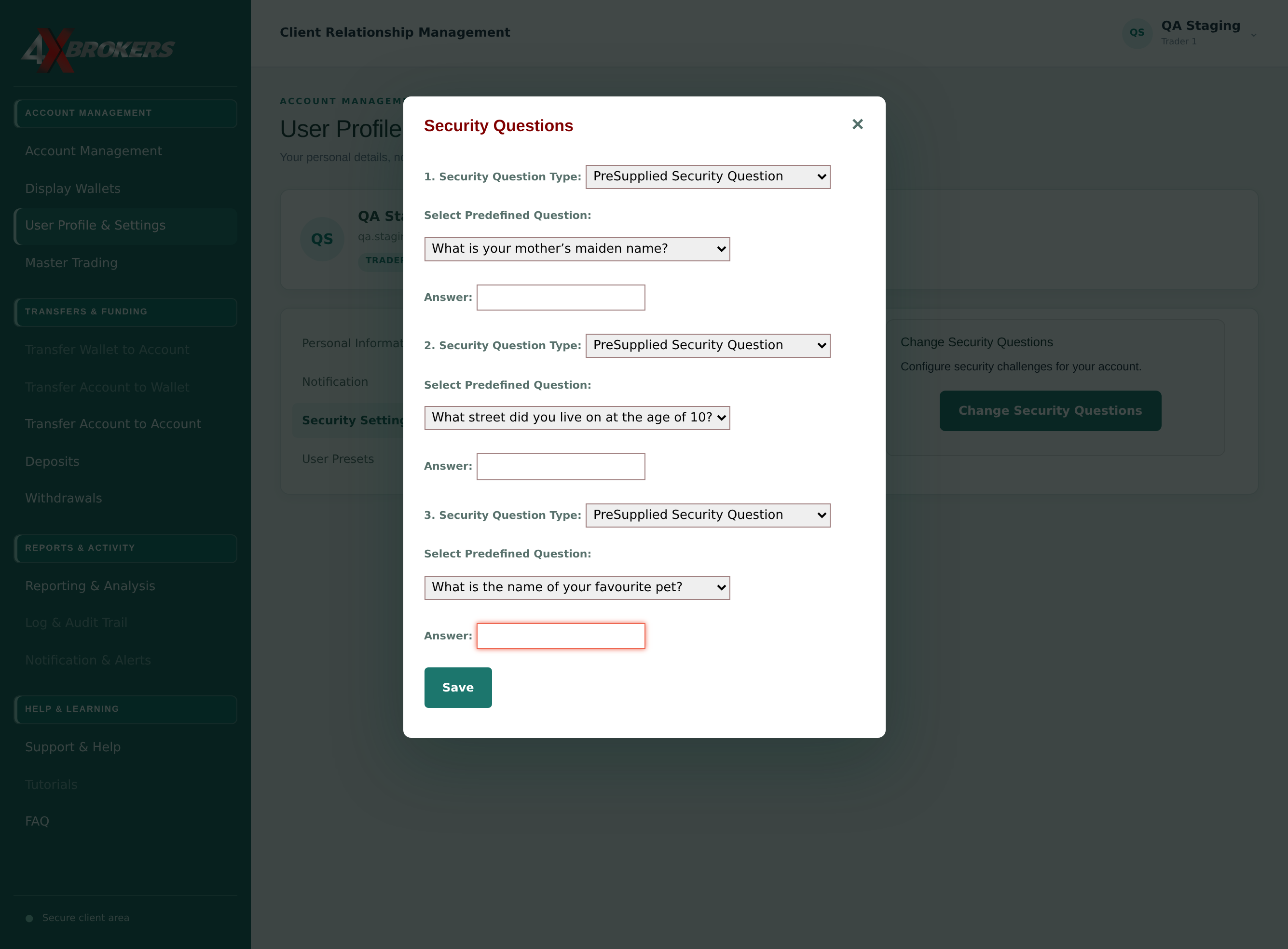
Step 11 · action shown aboveChange Your Password or Security Questions — step 11