1
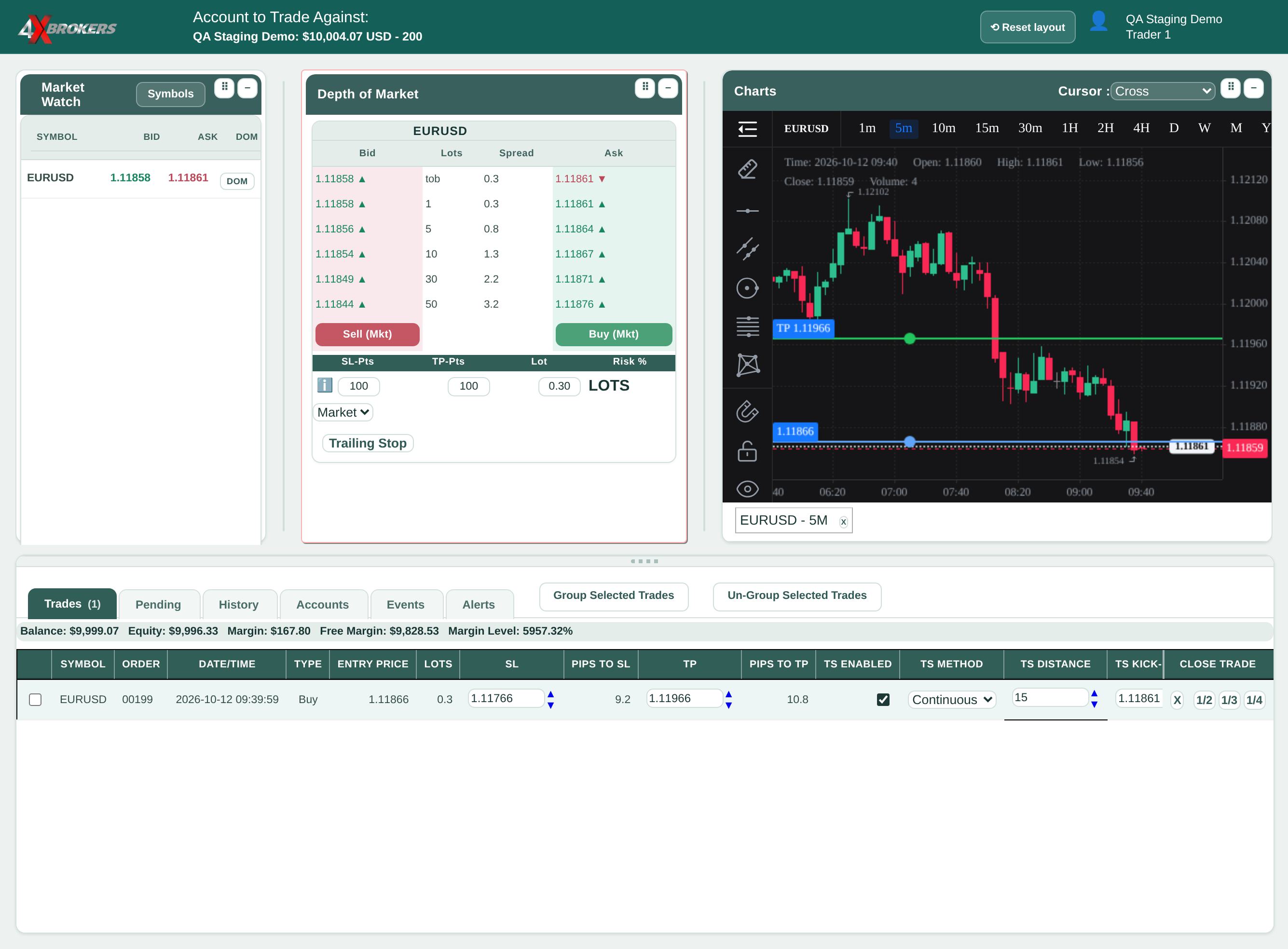
Open the Trades tab and find the open trade.
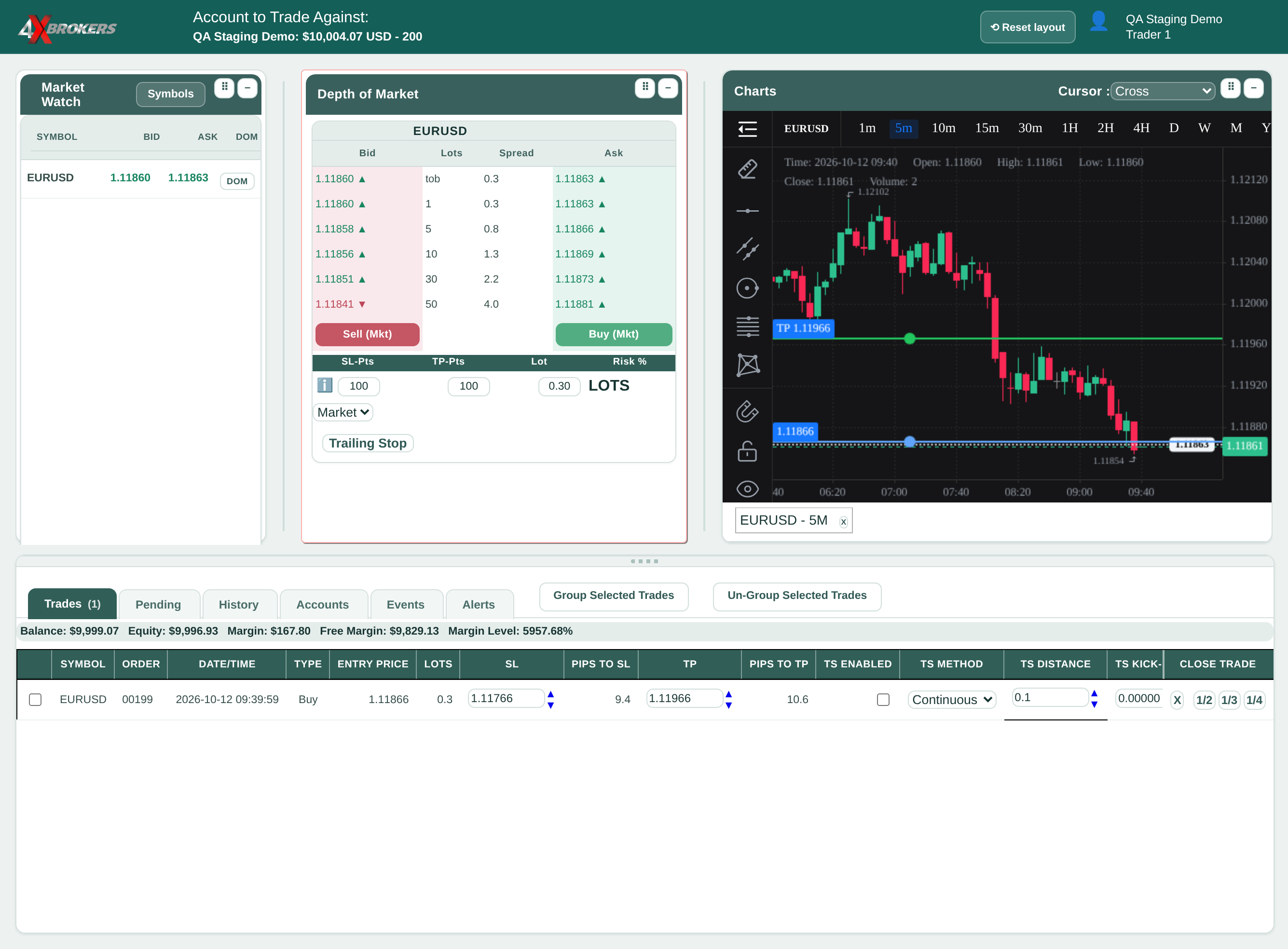
The trailing-stop settings are in the TS columns of the trade's row.
Trading Help Center › Trading on 4XTerminal
Let the stop loss follow the price as the trade moves in your favour.
How to use this guide: Follow the numbered steps in order. Each heading names the button, field or control to use, the note below it explains what happens, and the pointer on the screenshot shows exactly where to click.
17 Step-by-step guide
Let the stop loss follow the price as the trade moves in your favour.
The trailing-stop settings are in the TS columns of the trade's row.
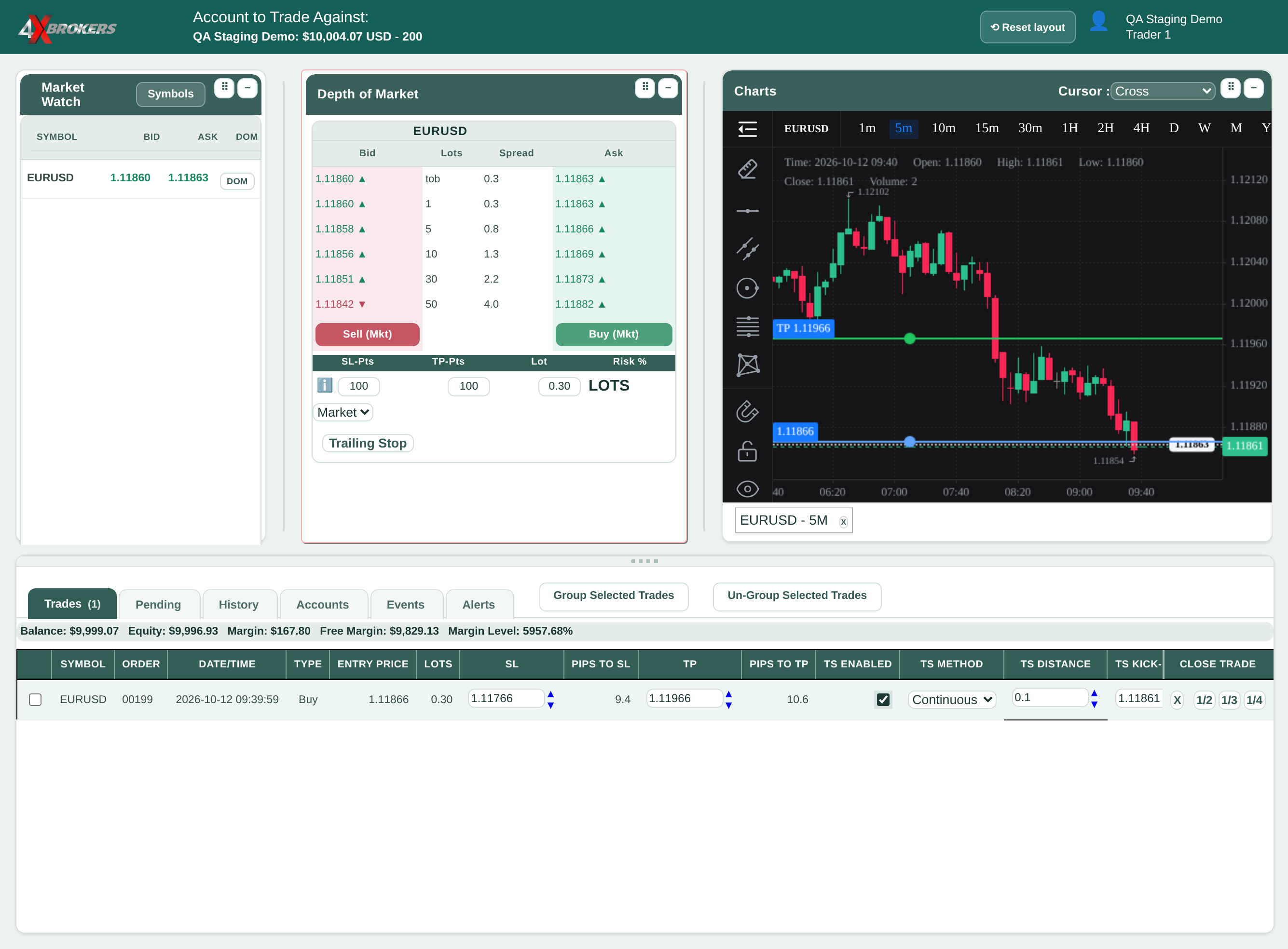
This turns on the trailing stop for this trade only.
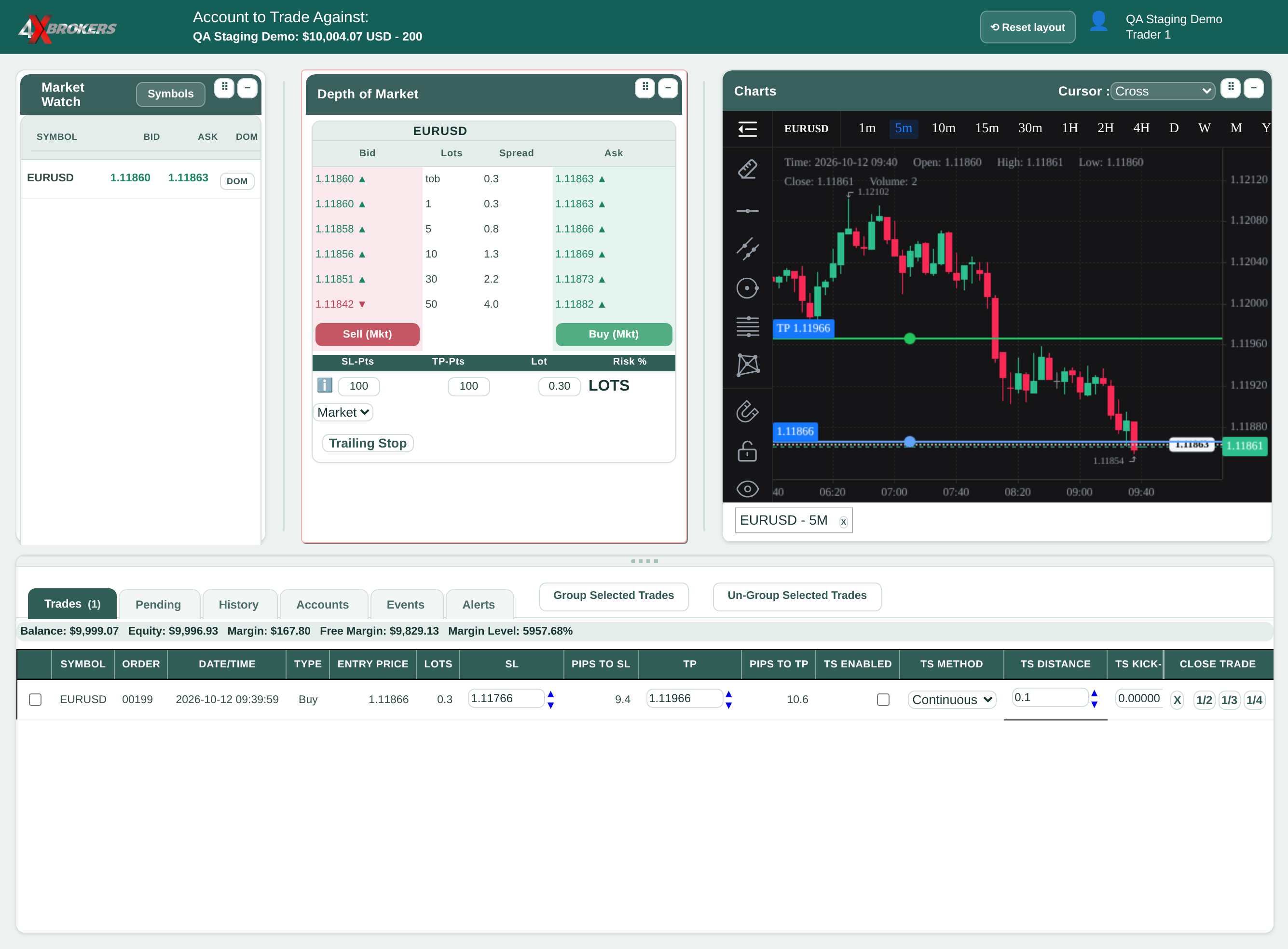
Incremental moves the stop in steps, and Continuous follows every price move.
This is how far, in pips, the stop stays behind the price. The arrows next to the field change it by 0.1 pip.
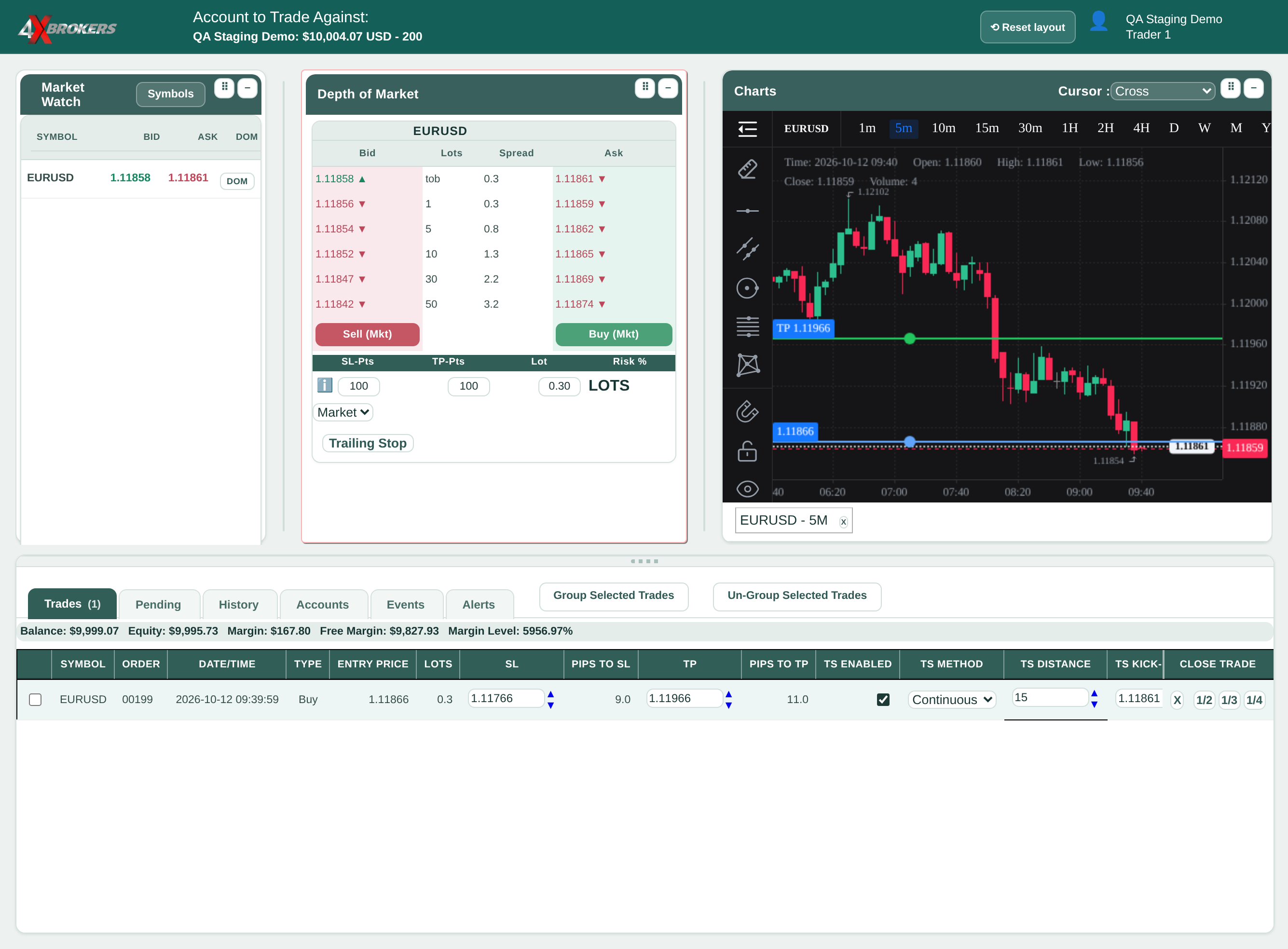
Trailing starts only once the price reaches this level. Until then the stop loss stays where it is.