1
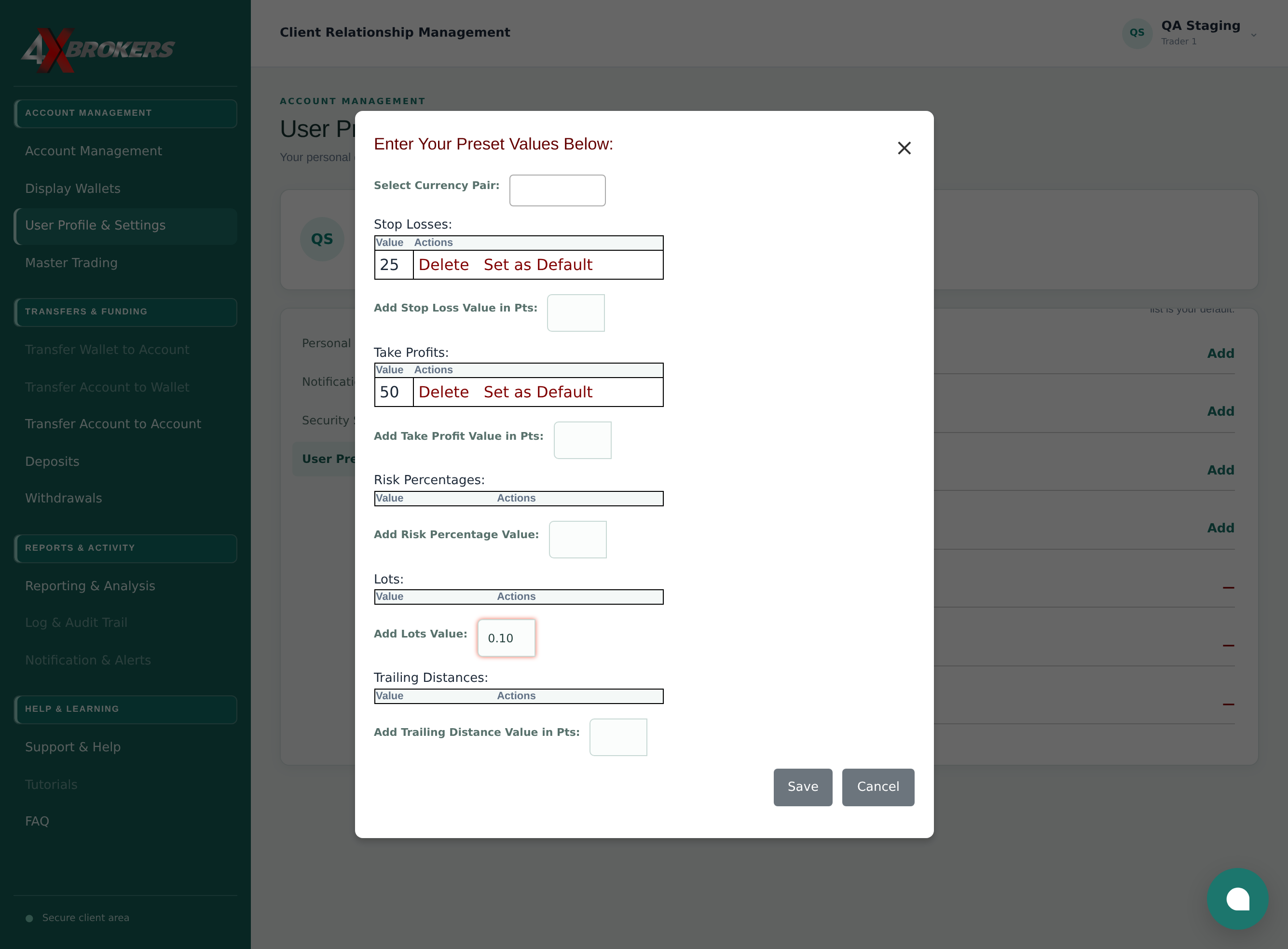
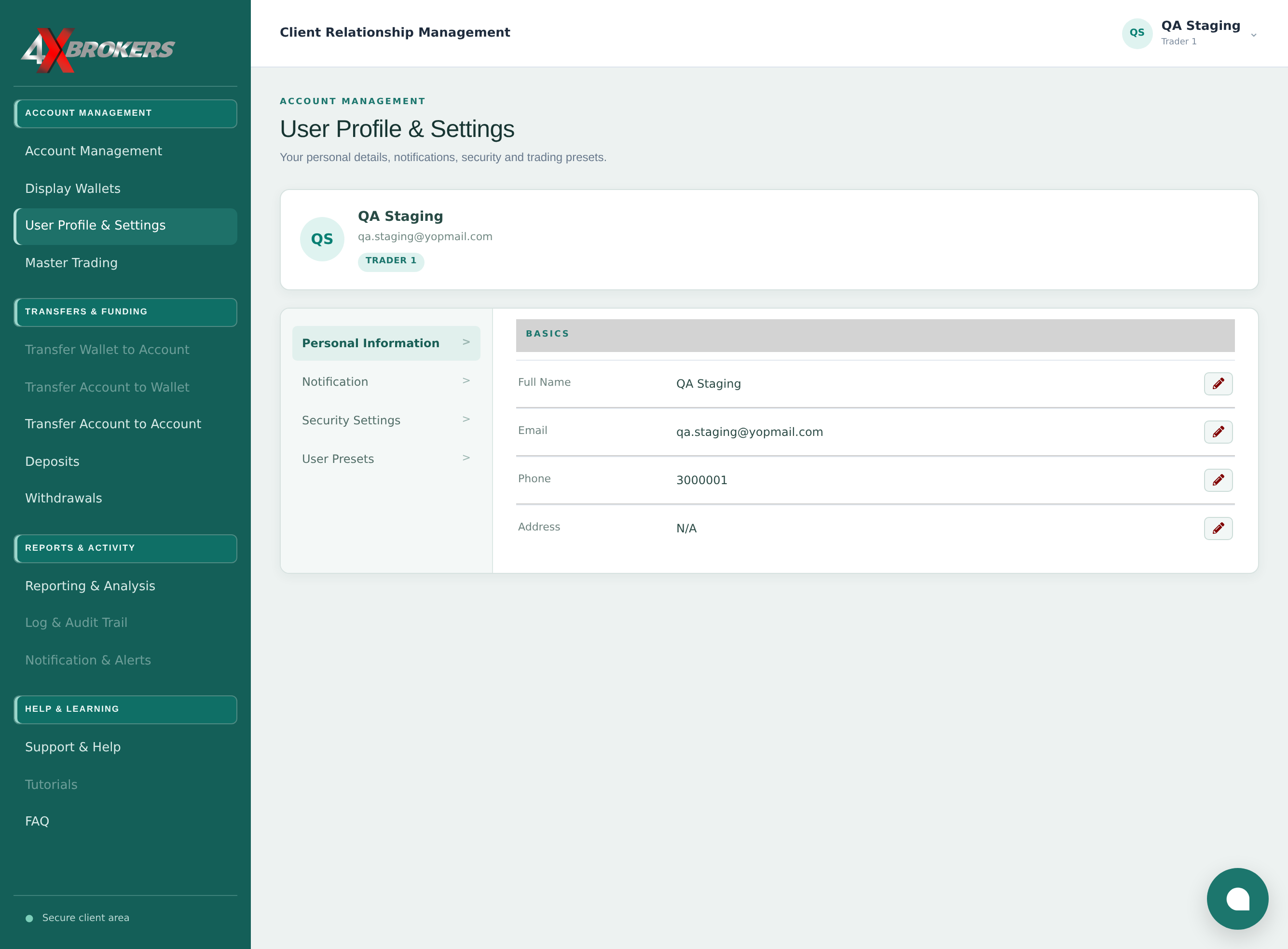
Open User Profile & Settings.
You can reach it from the left-hand menu of the client portal.
Trading Help Center › Accounts & settings
Save your usual stop-loss, take-profit, risk and lot values so they are one click away in 4XTerminal.
How to use this guide: Follow the numbered steps in order. Each heading names the button, field or control to use, the note below it explains what happens, and the pointer on the screenshot shows exactly where to click.
8 Step-by-step guide
Save your usual stop-loss, take-profit, risk and lot values so they are one click away in 4XTerminal.
You can reach it from the left-hand menu of the client portal.
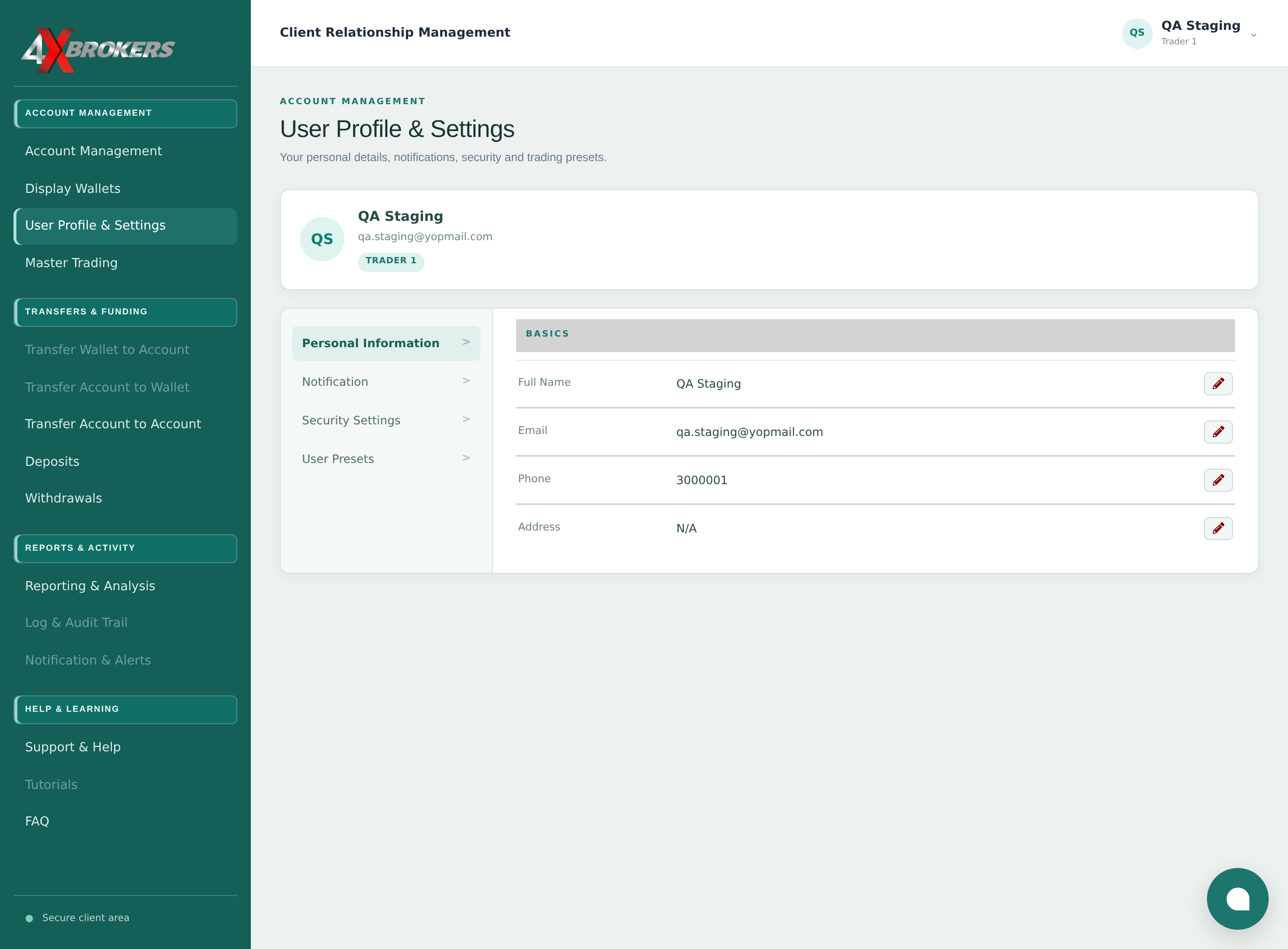
Presets are grouped by instrument type, such as FOREX.
A form opens for the values you want to keep ready for that group.
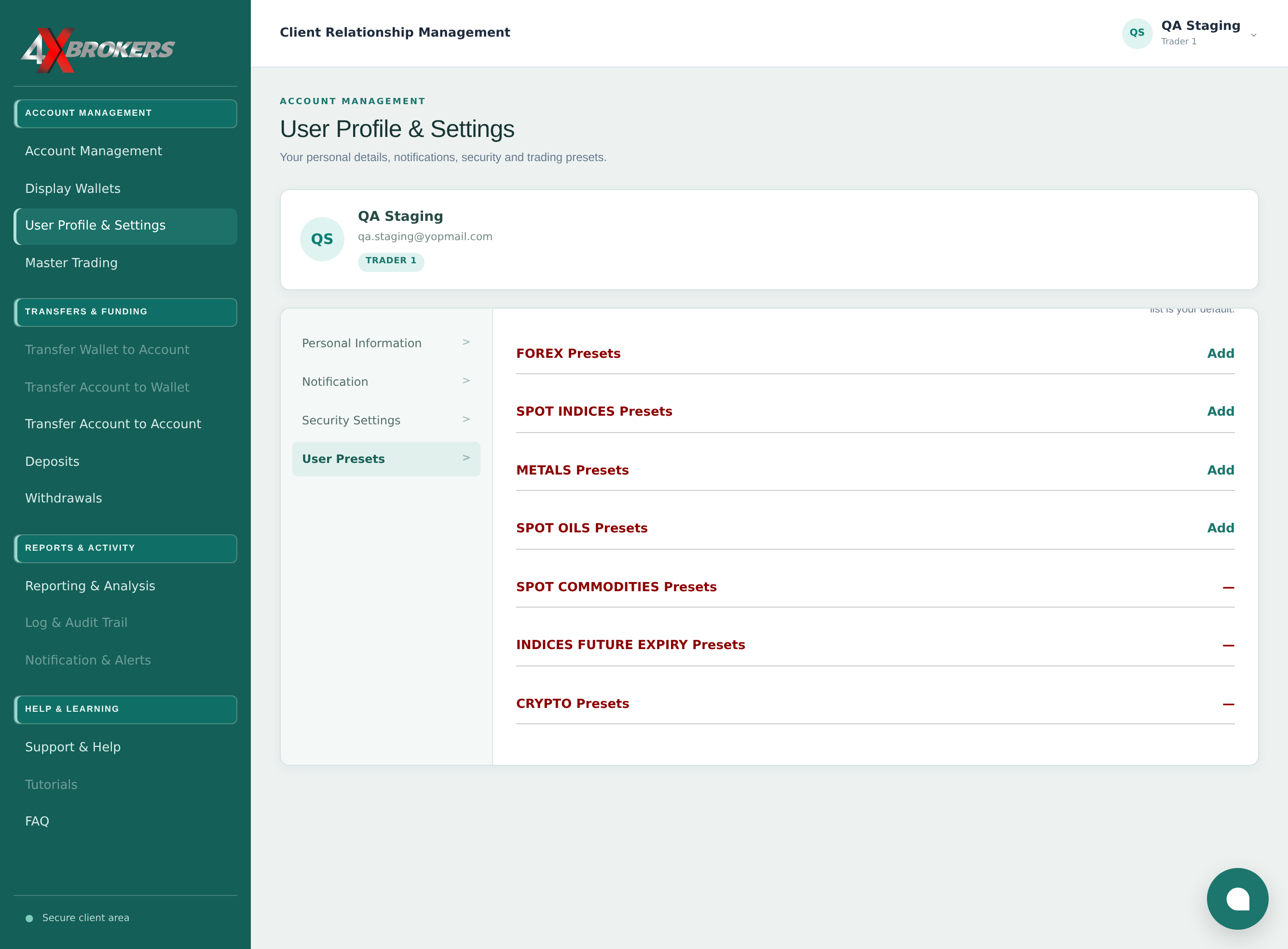
Presets can apply to one pair, or to every pair in the group.
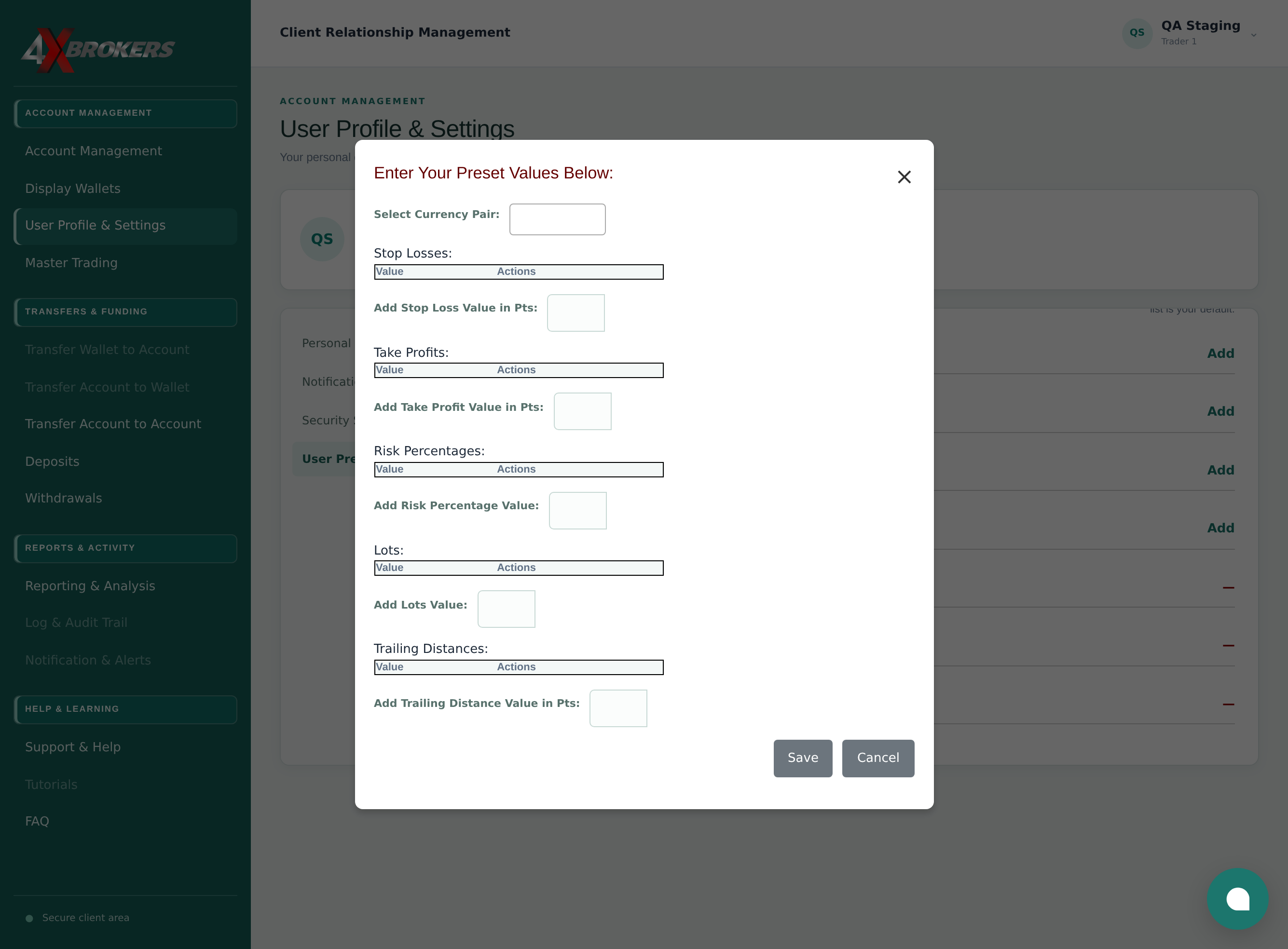
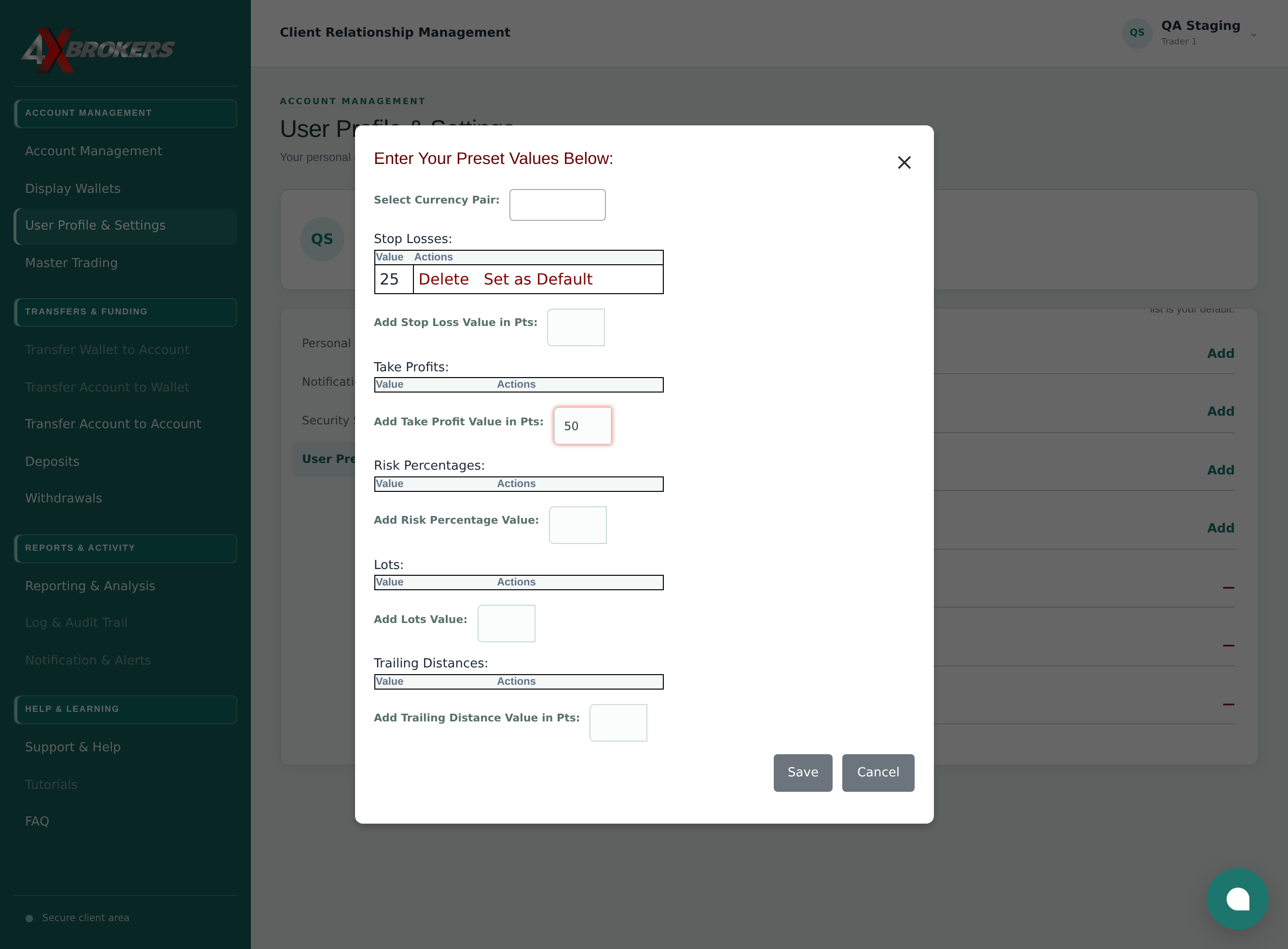
Values are in points (10 points = 1 pip). Each value you add appears in the list above the field, where you can delete it or make it the default.
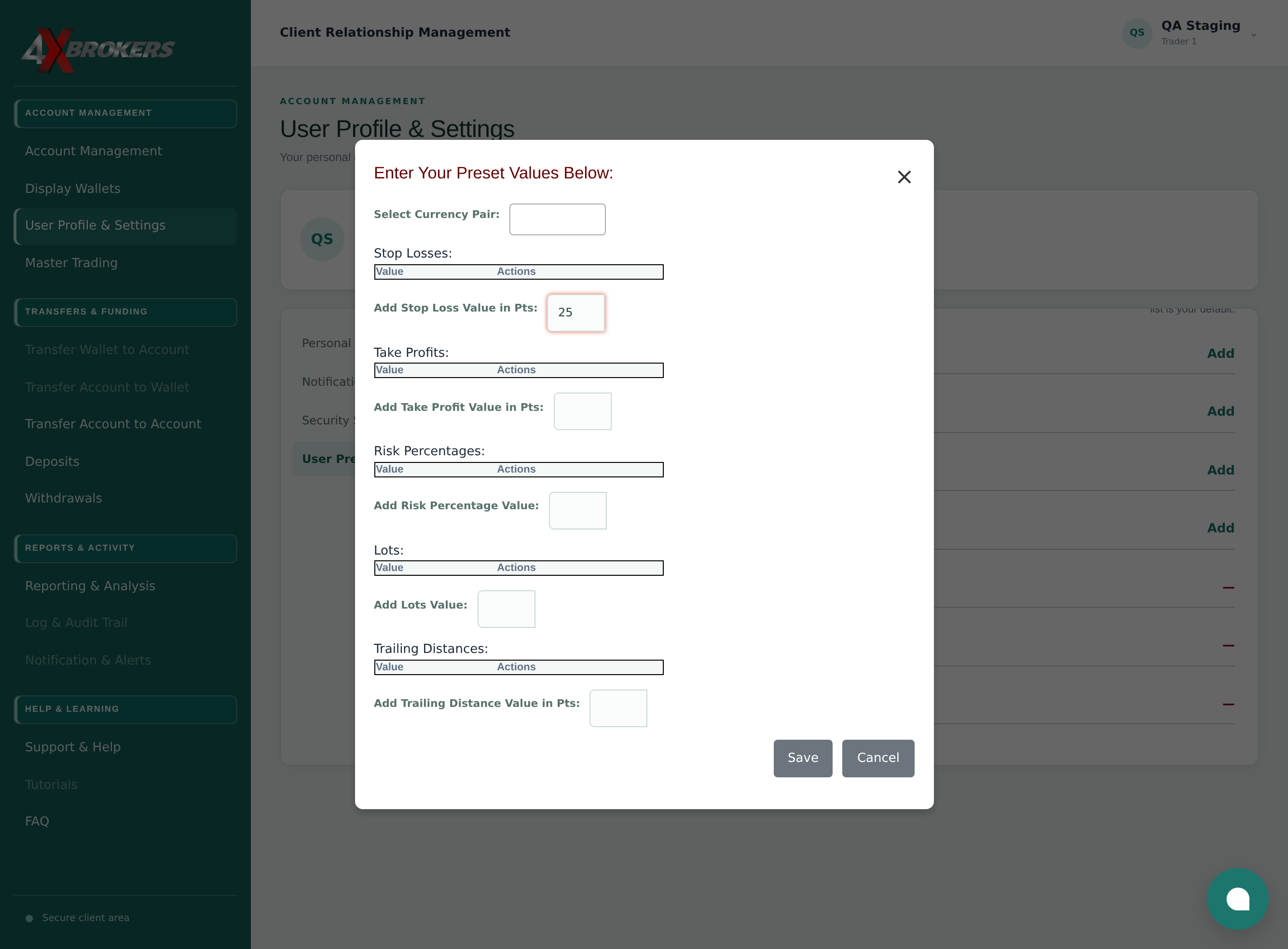
Add as many values as you use regularly; they appear as quick choices on the order panel.
Risk percentages and trailing distances are added in the same way, in their own fields.
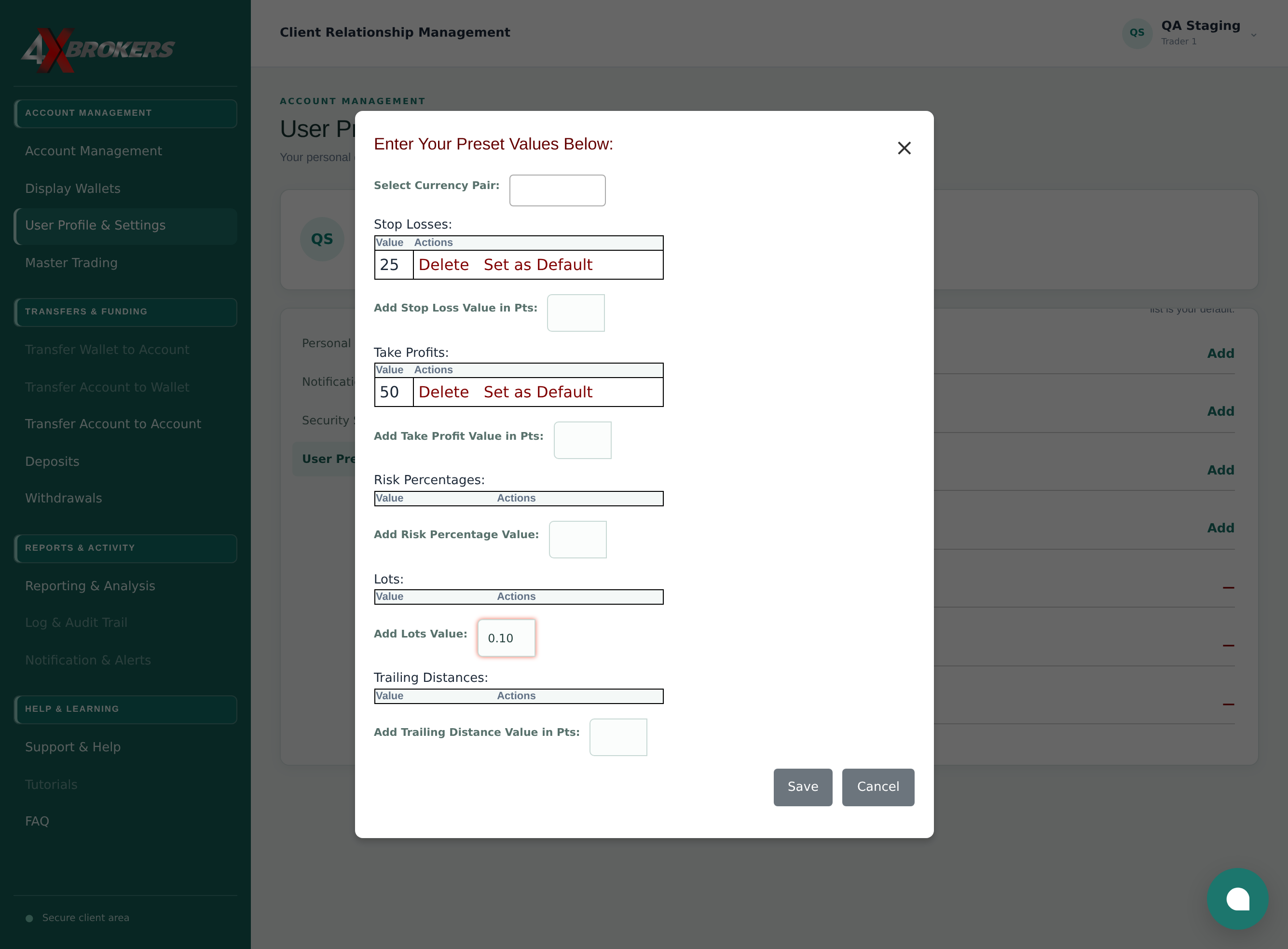
Your presets are now offered on the order panel in 4XTerminal for that pair or group.