1
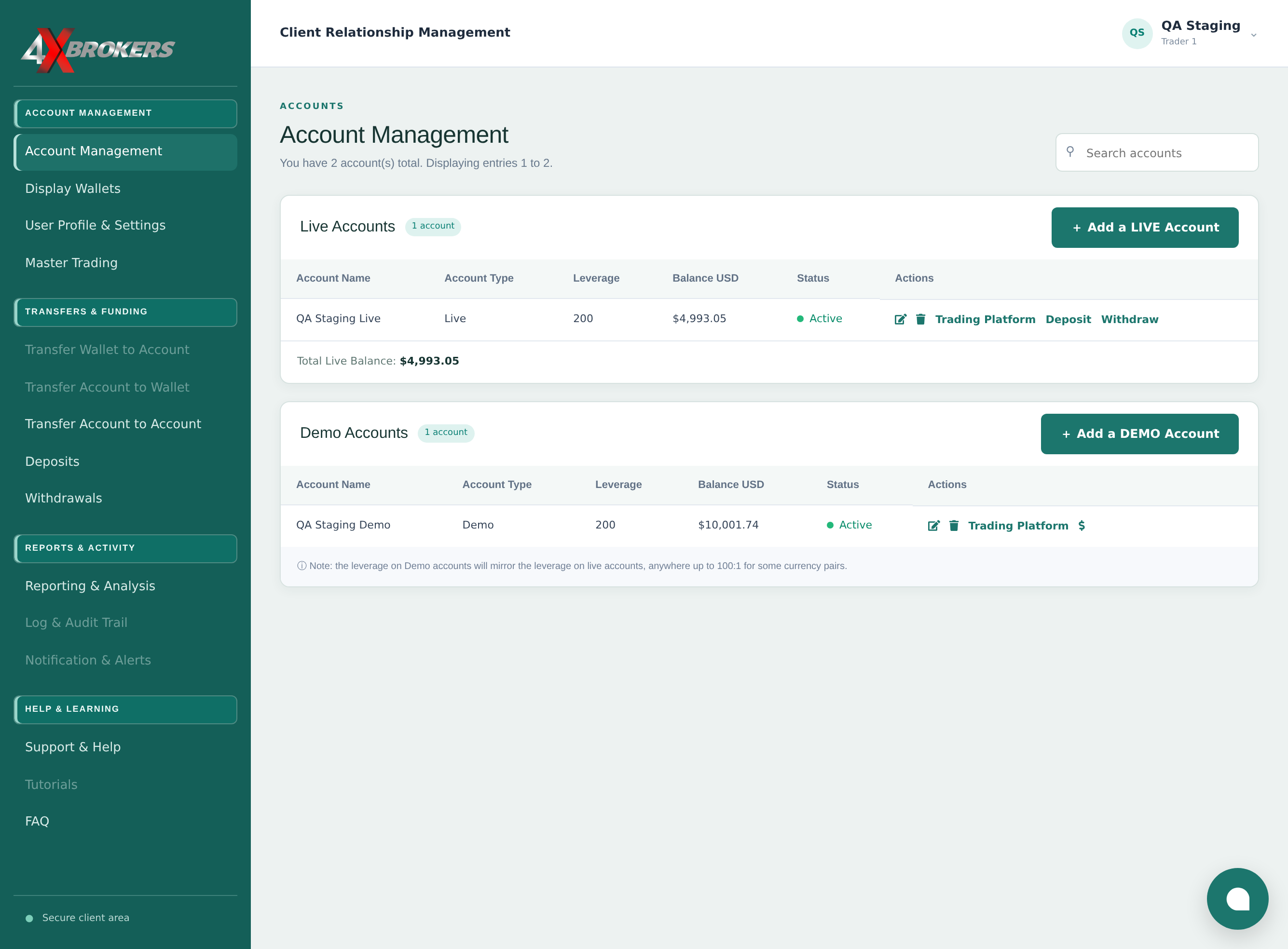
In Account Management, select Trading Platform for the account you want to trade.
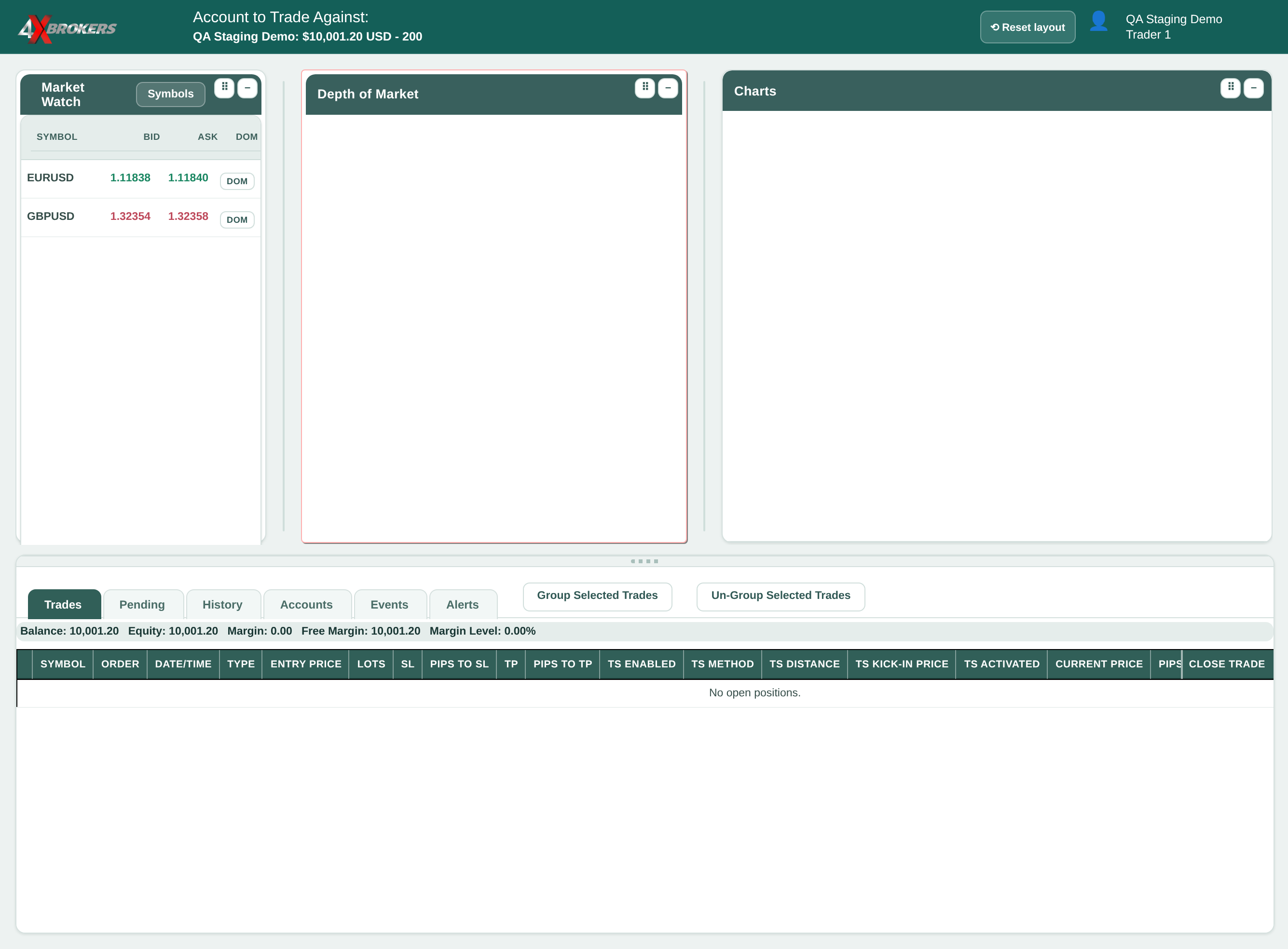
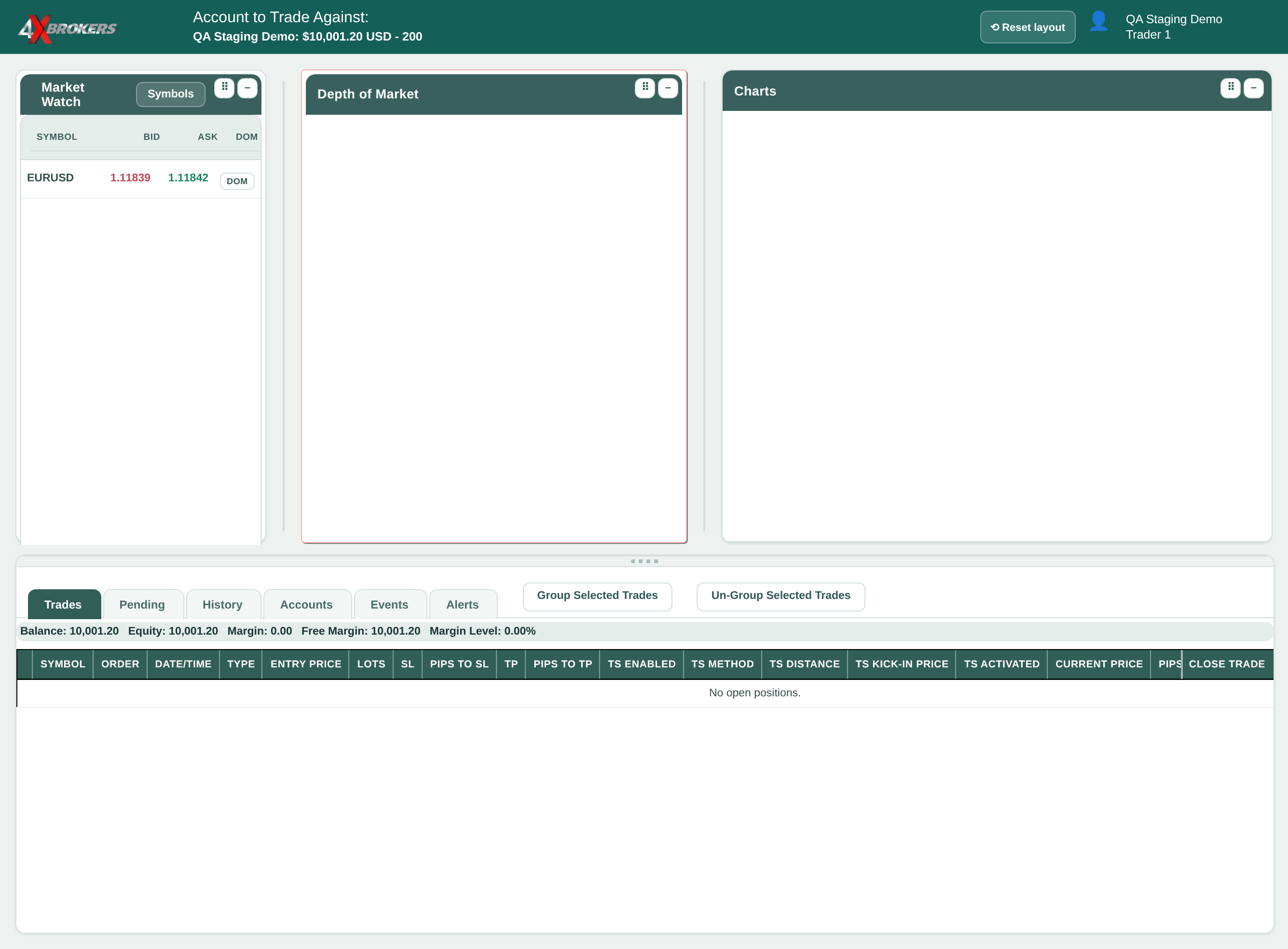
4XTerminal opens for that account. Its name and balance are shown at the top of the platform.
Trading Help Center › Trading on 4XTerminal
Open the trading platform for an account and choose which instruments appear in Market Watch.
How to use this guide: Follow the numbered steps in order. Each heading names the button, field or control to use, the note below it explains what happens, and the pointer on the screenshot shows exactly where to click.
12 Step-by-step guide
Open the trading platform for an account and choose which instruments appear in Market Watch.
4XTerminal opens for that account. Its name and balance are shown at the top of the platform.
This opens the list of all the instruments you can add.
The group expands to show every symbol in it.
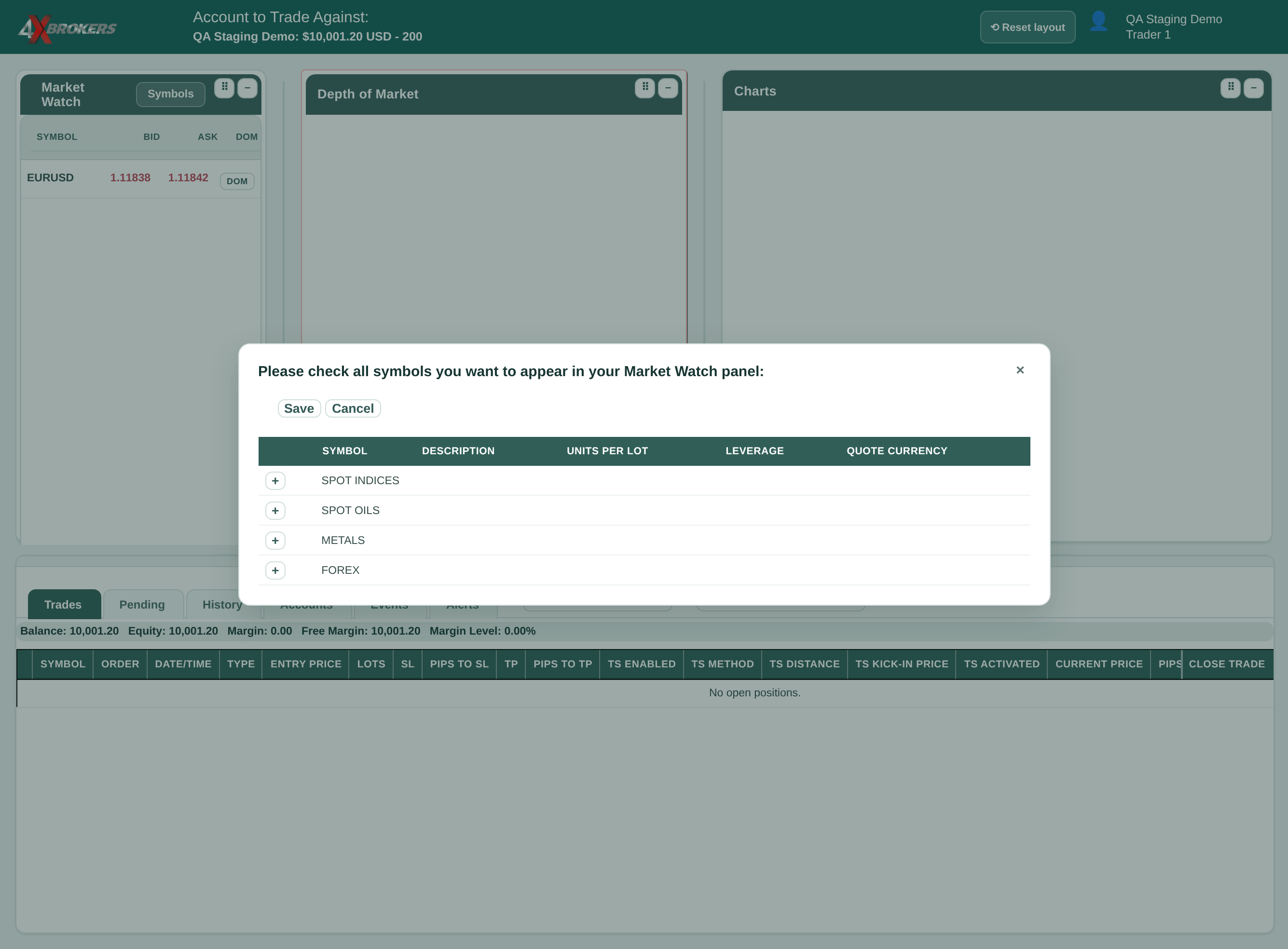
You can tick symbols from several groups before saving.
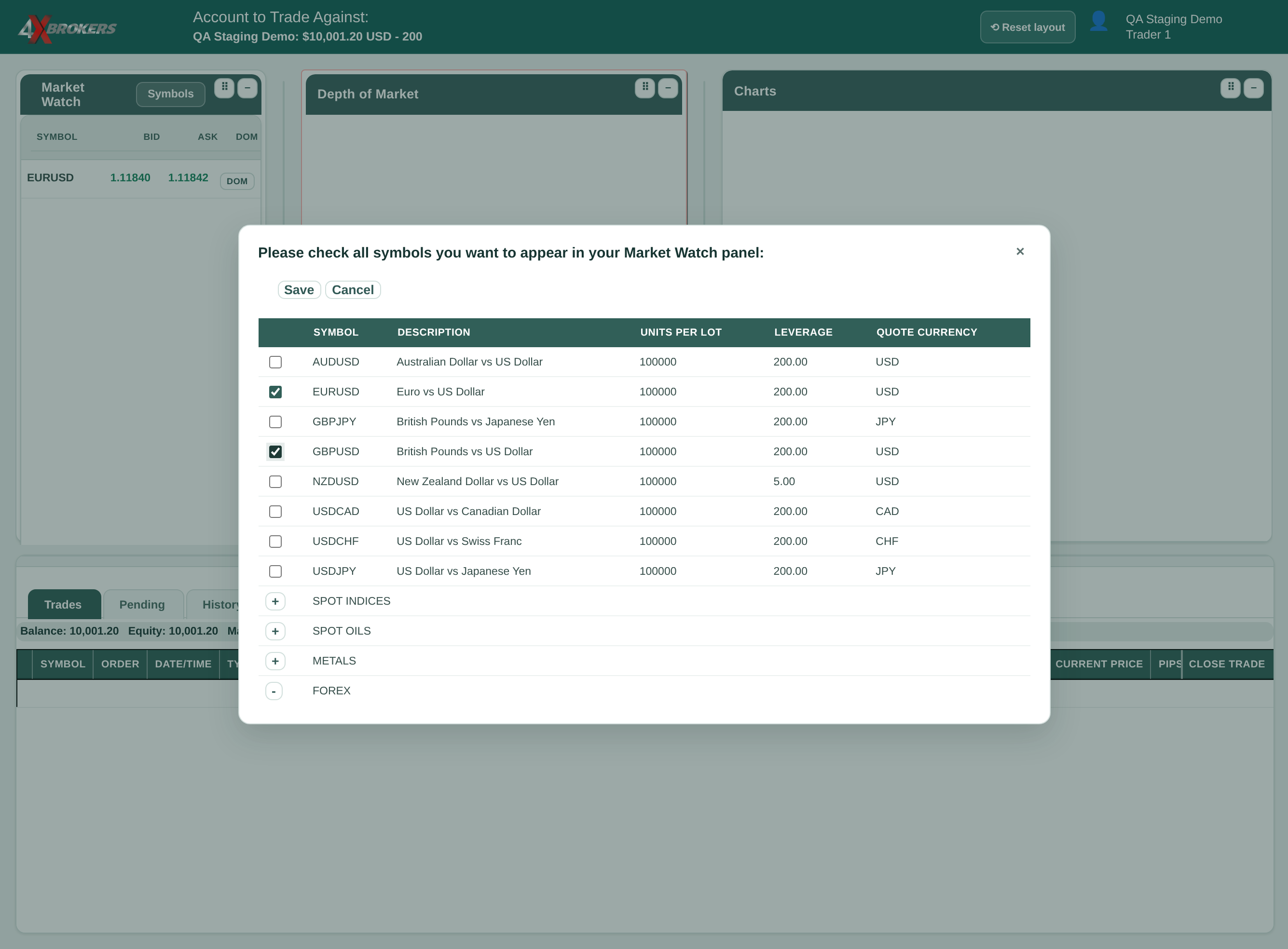
The chosen symbols are added to Market Watch and stay there the next time you open the platform.
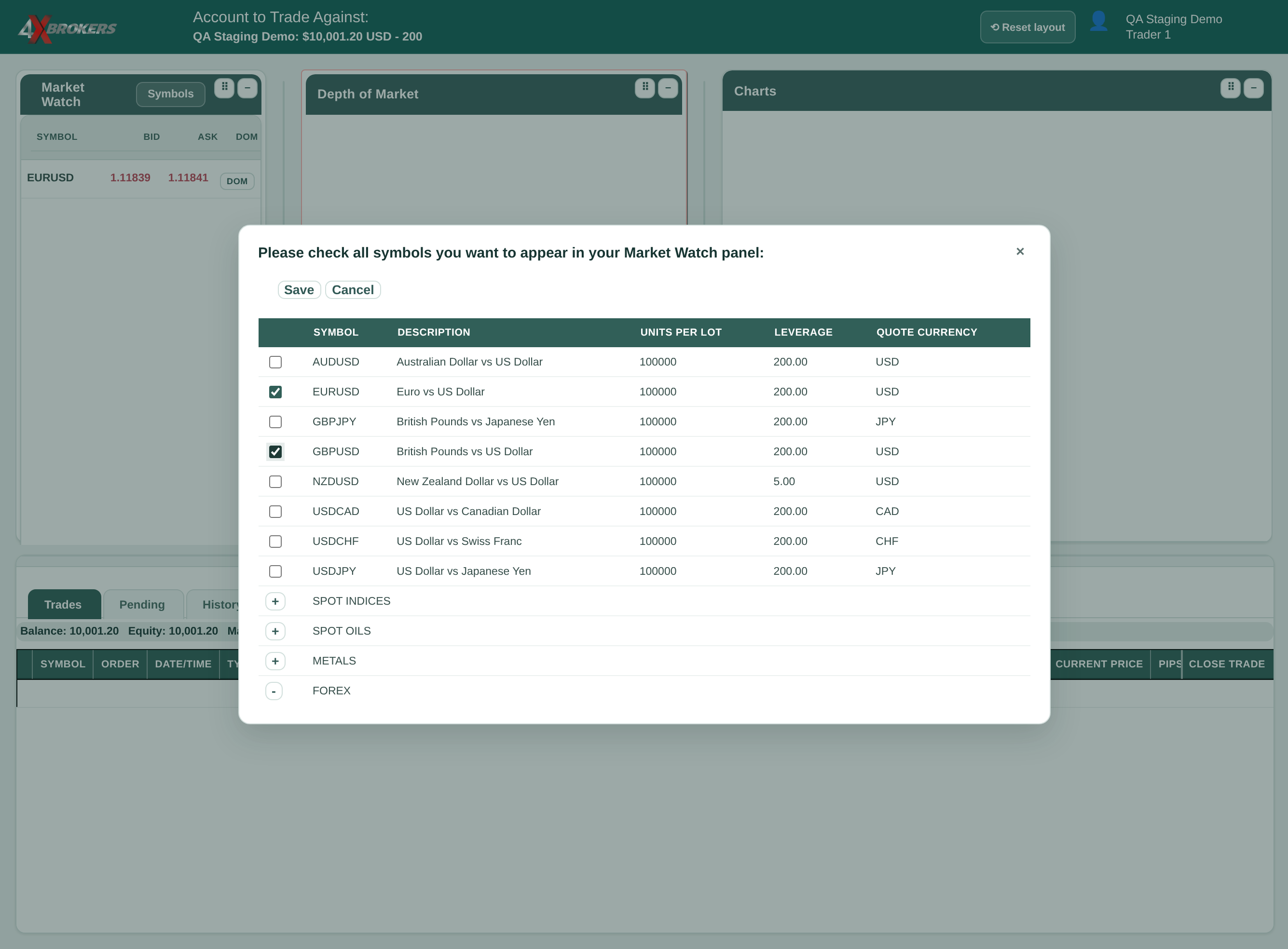
DOM opens the symbol's depth-of-market order panel and loads its chart.