1
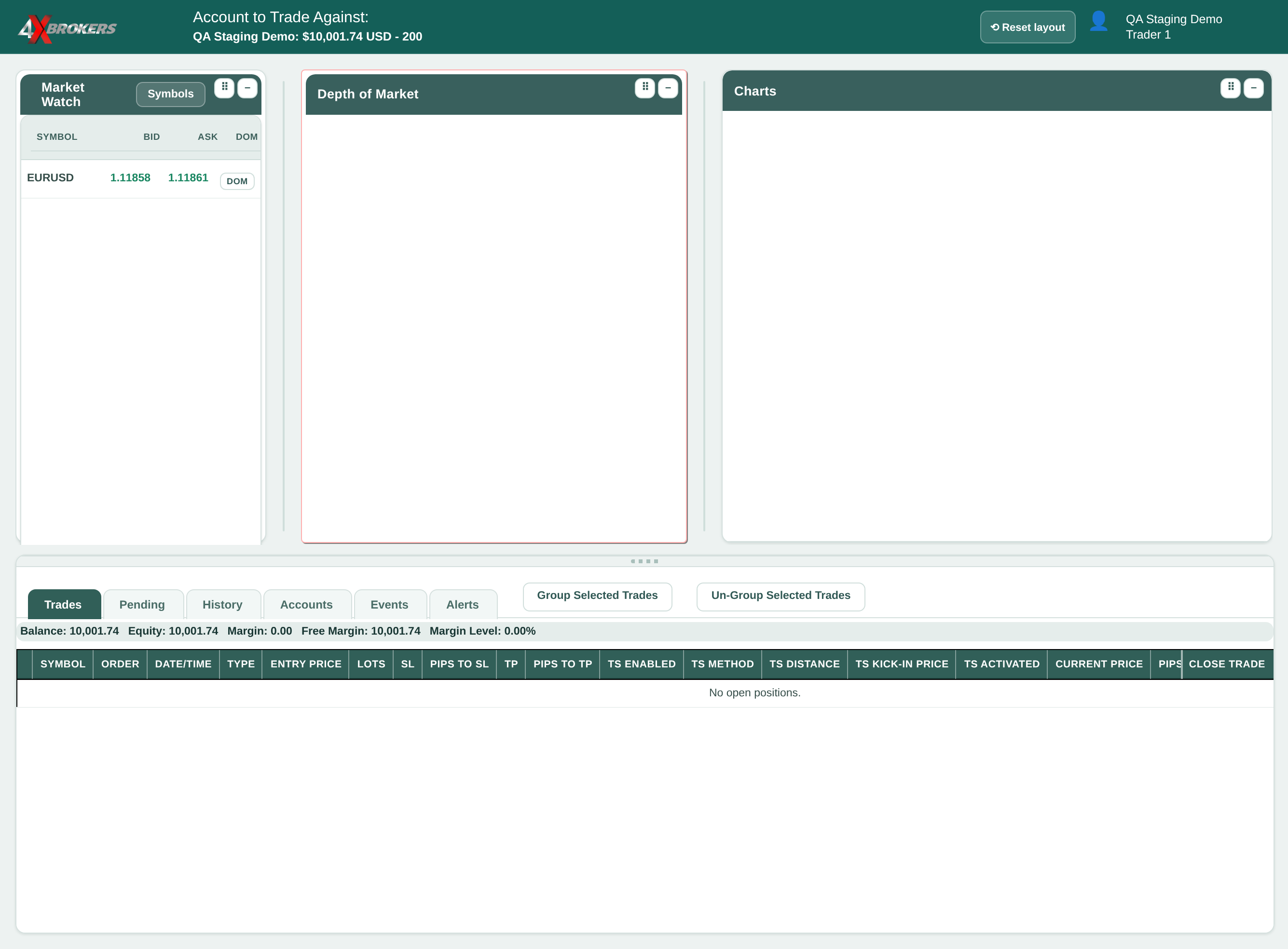
In Market Watch, select DOM for the symbol.
The order panel opens for that symbol.
Trading Help Center › Trading on 4XTerminal
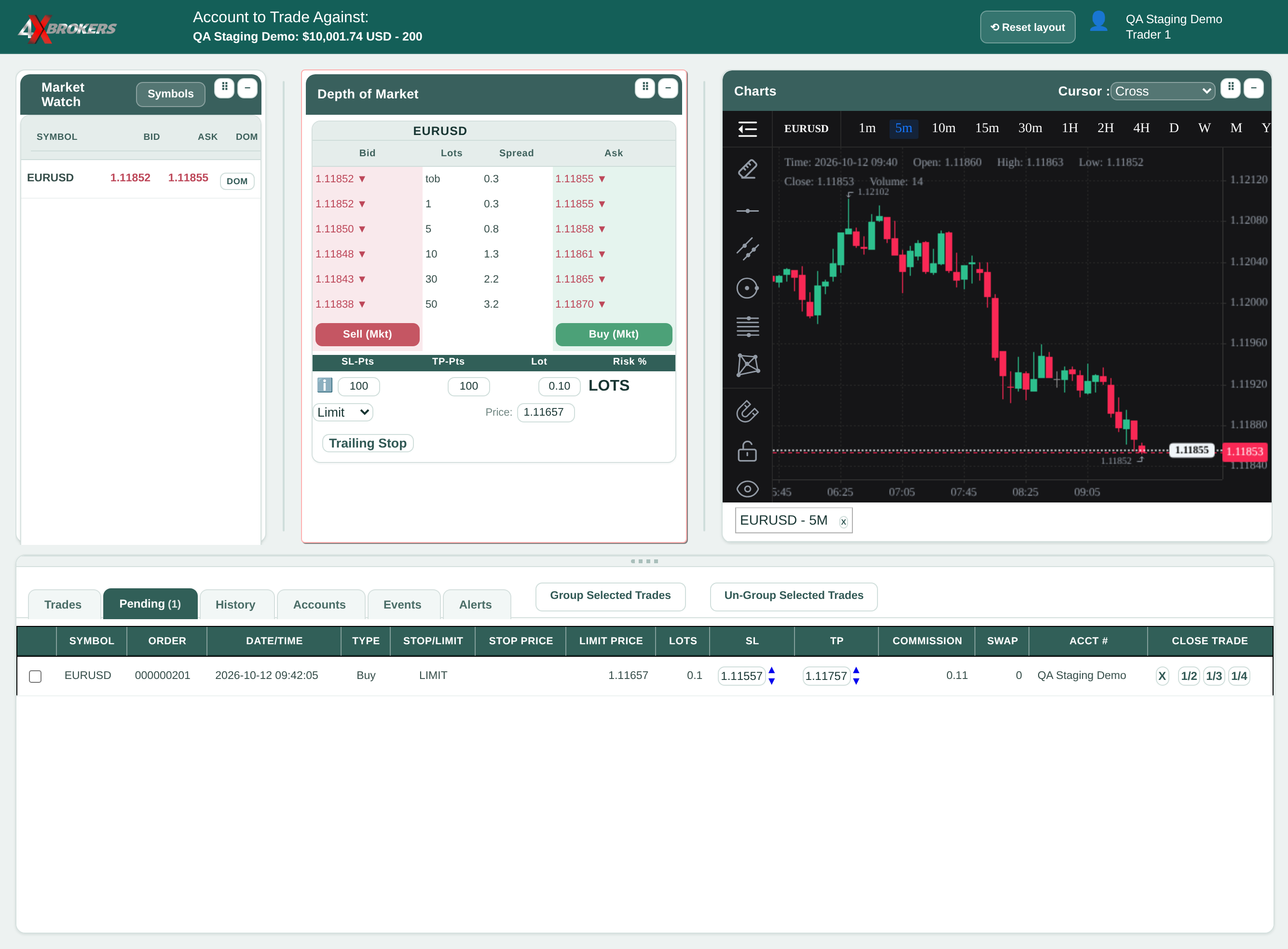
Queue an order that opens only when the market reaches your price. A Buy Limit waits below the current price; a Buy Stop waits above it.
How to use this guide: Follow the numbered steps in order. Each heading names the button, field or control to use, the note below it explains what happens, and the pointer on the screenshot shows exactly where to click.
16 Step-by-step guide
Queue an order that opens only when the market reaches your price. A Buy Limit waits below the current price; a Buy Stop waits above it.
The order panel opens for that symbol.
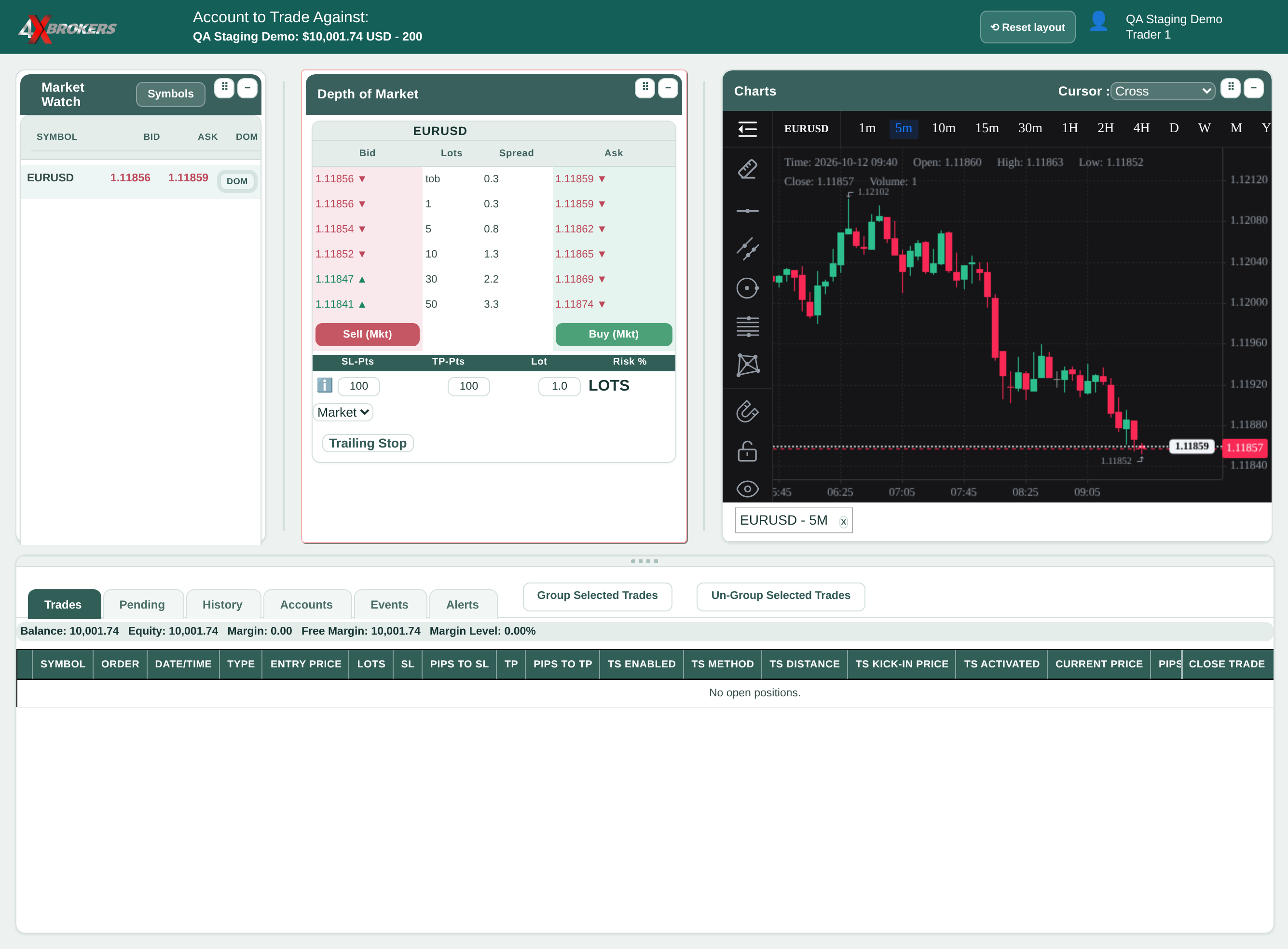
Use Limit to buy below or sell above the current price, and Stop to buy above or sell below it.
The order waits until the market reaches this price.
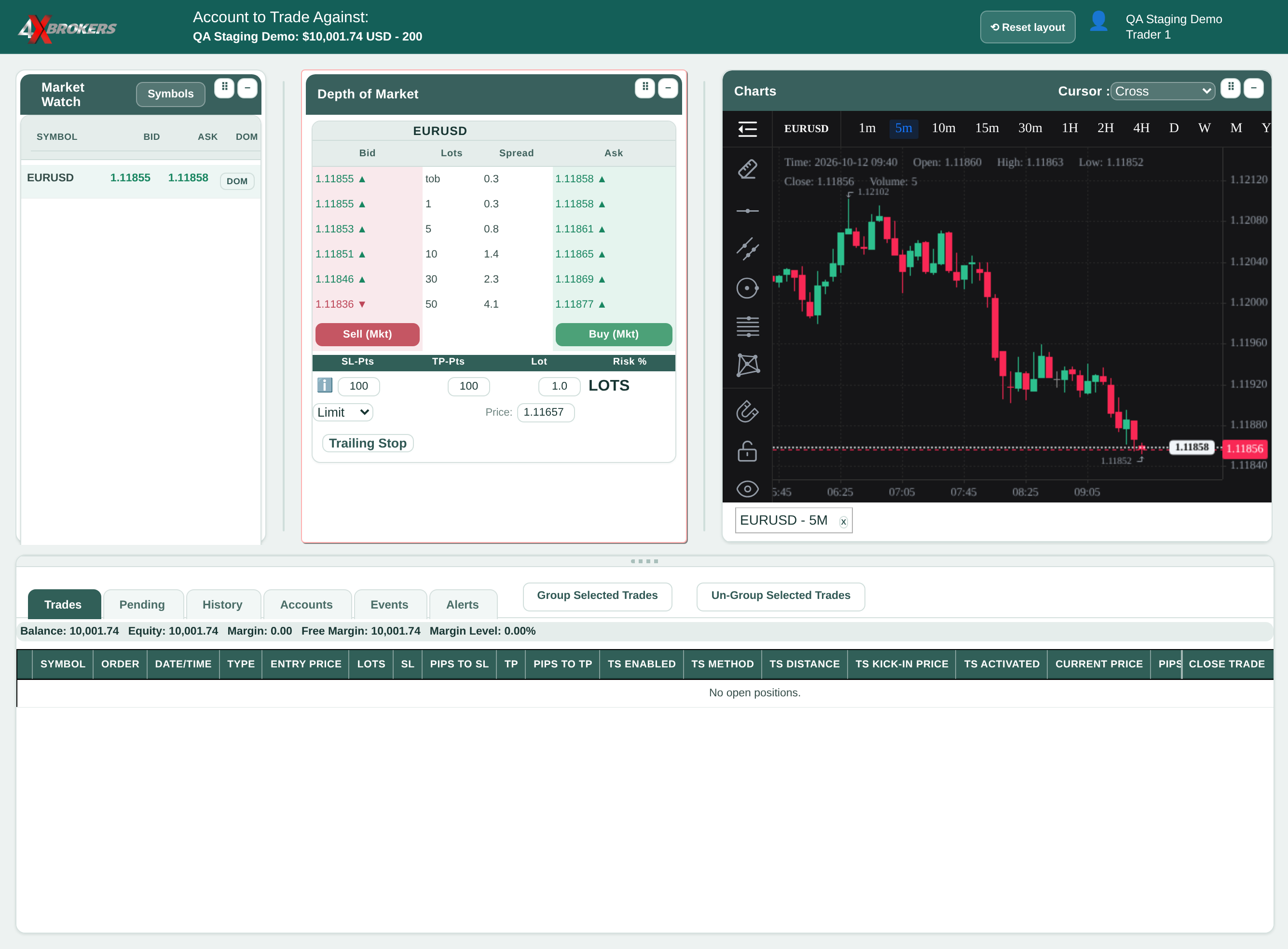
The button keeps its “(Mkt)” label, but the order is placed as the type you chose.
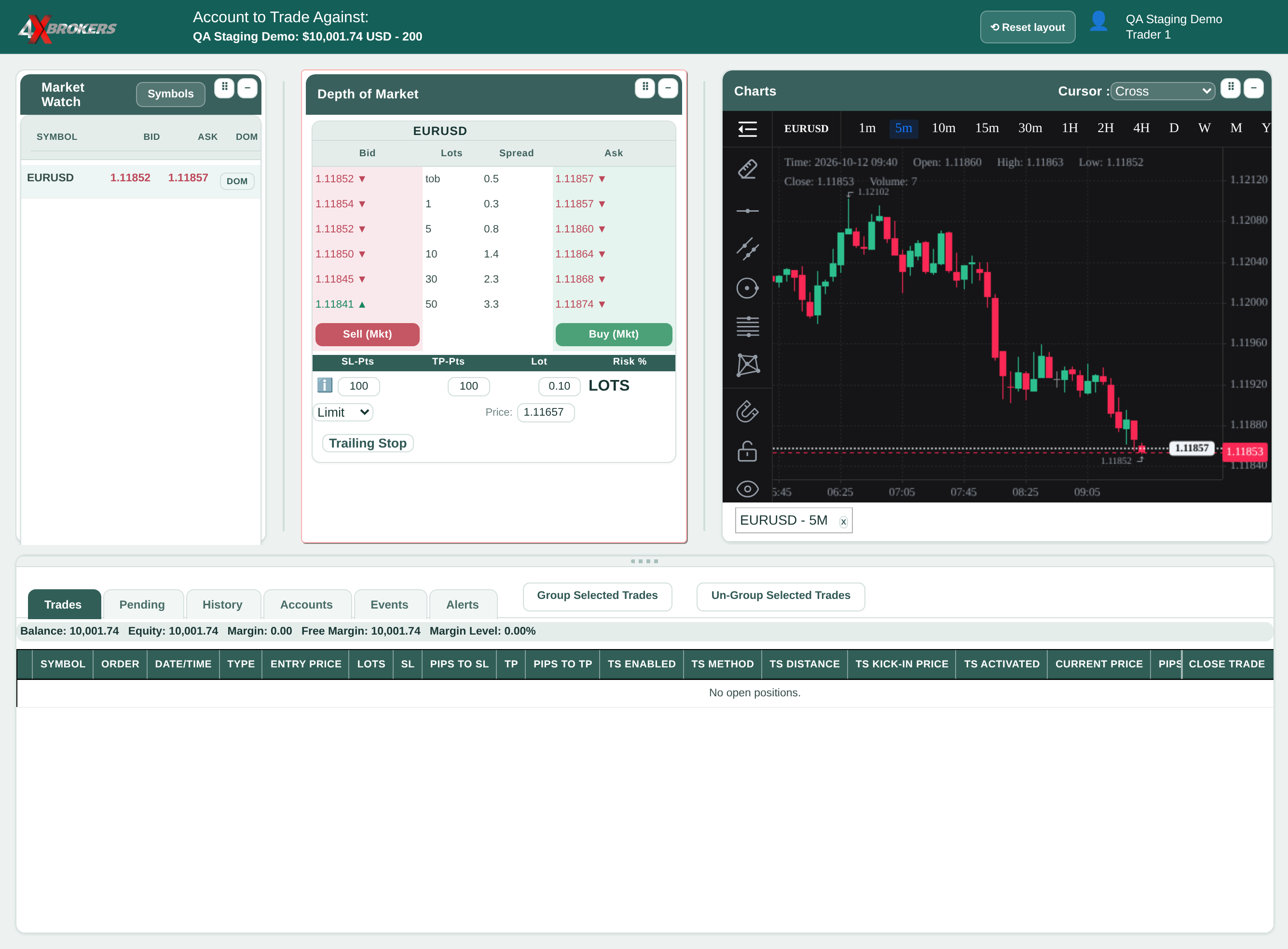
When the price is reached, the order opens as a trade and moves to the Trades tab.
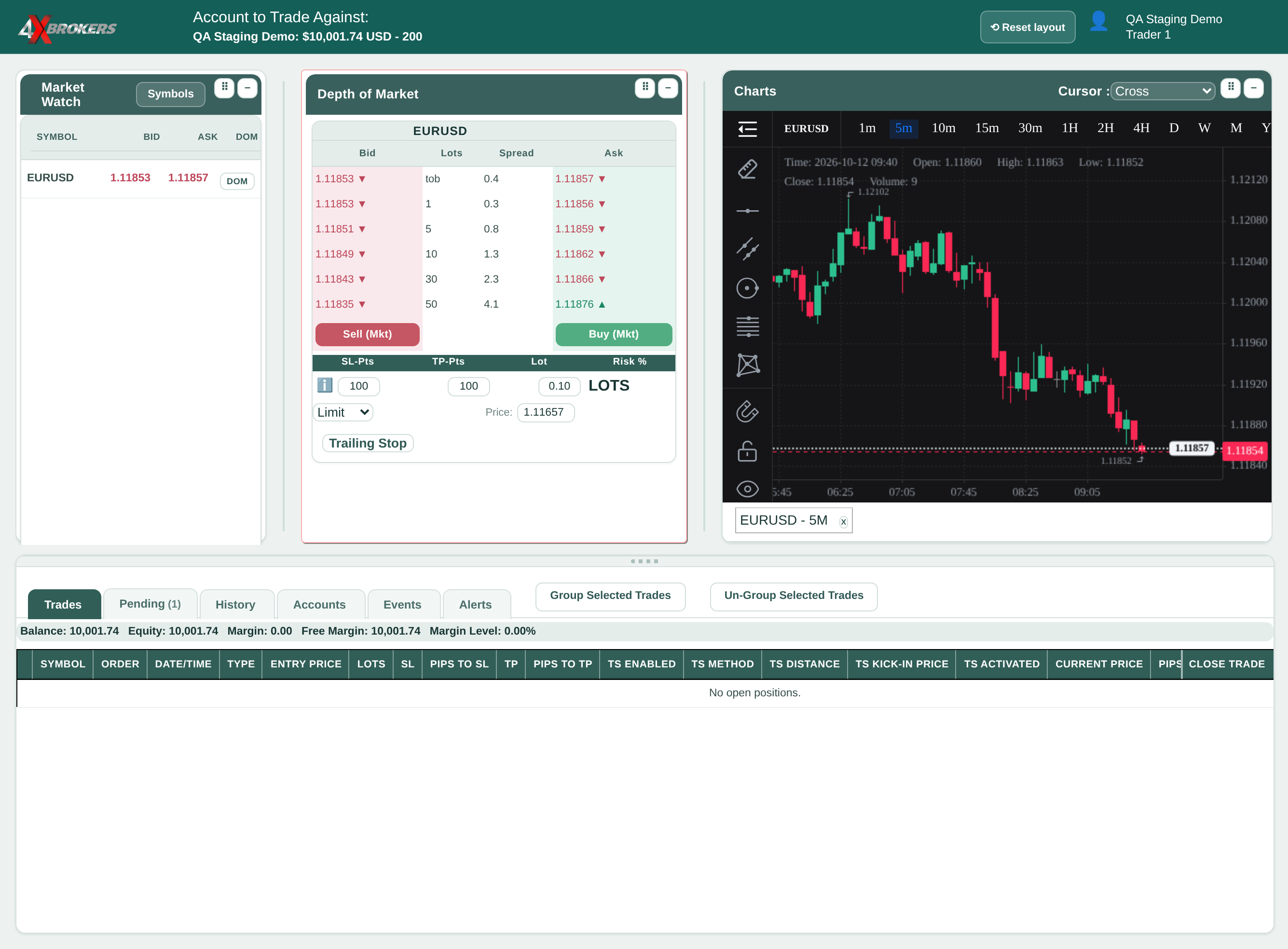
A cancelled order is removed from the Pending tab and never opens.