1
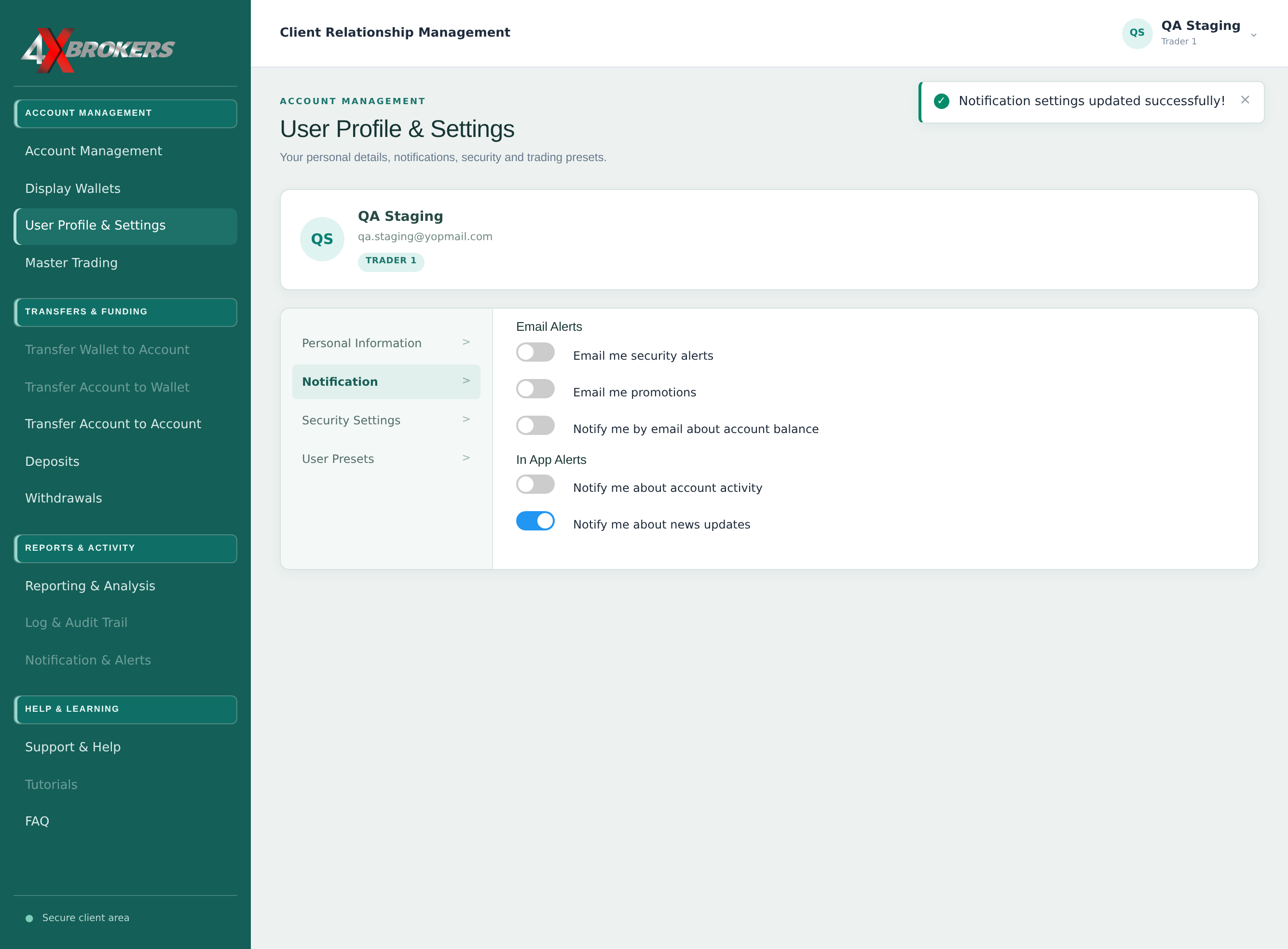
In User Profile & Settings, select Notification.
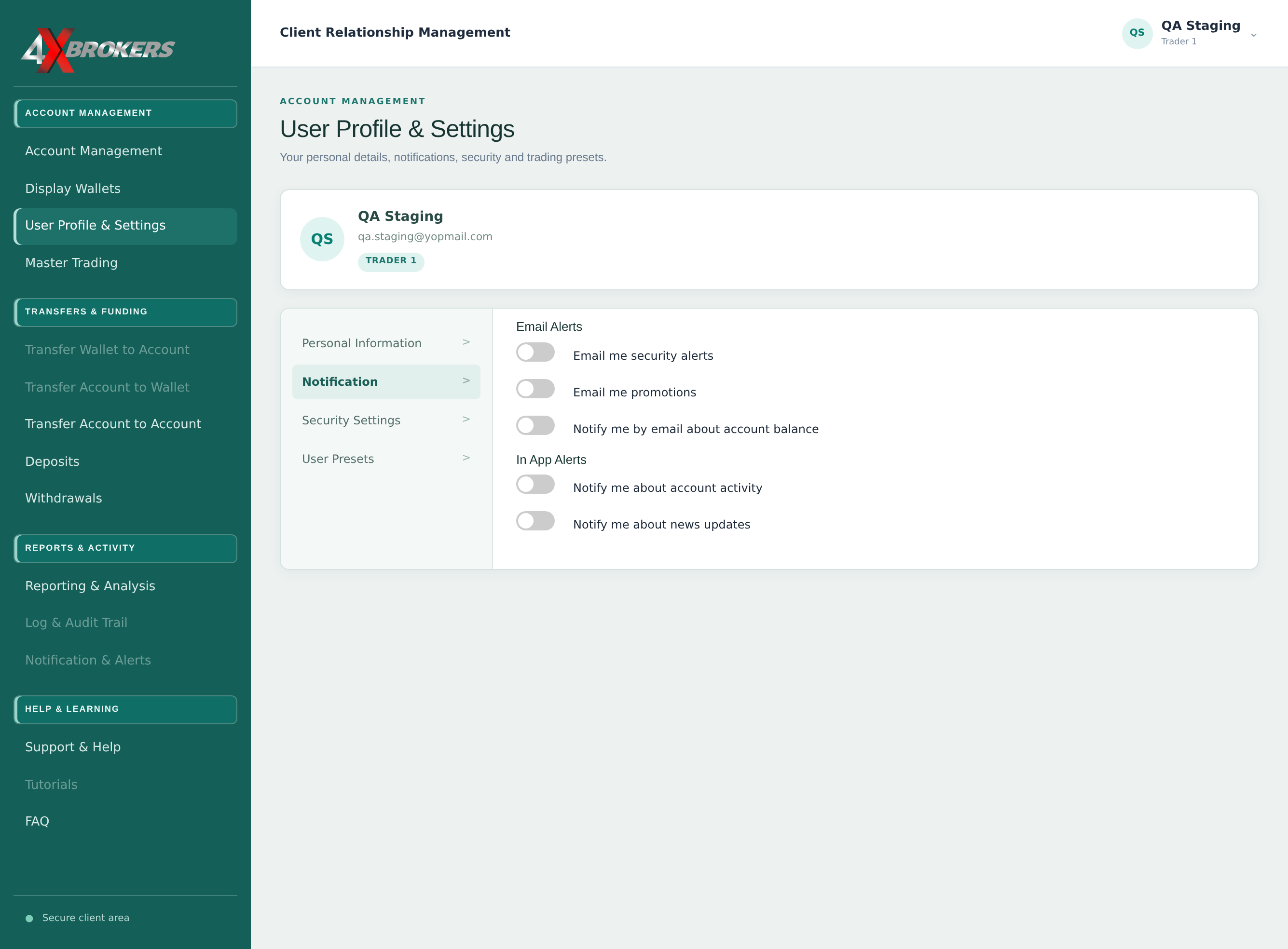
The alerts are split into Email Alerts and In App Alerts.
Trading Help Center › Accounts & settings
Decide which email and in-app alerts you receive.
How to use this guide: Follow the numbered steps in order. Each heading names the button, field or control to use, the note below it explains what happens, and the pointer on the screenshot shows exactly where to click.
11 Step-by-step guide
Decide which email and in-app alerts you receive.
The alerts are split into Email Alerts and In App Alerts.
You can receive security alerts, promotions and account balance updates by email.
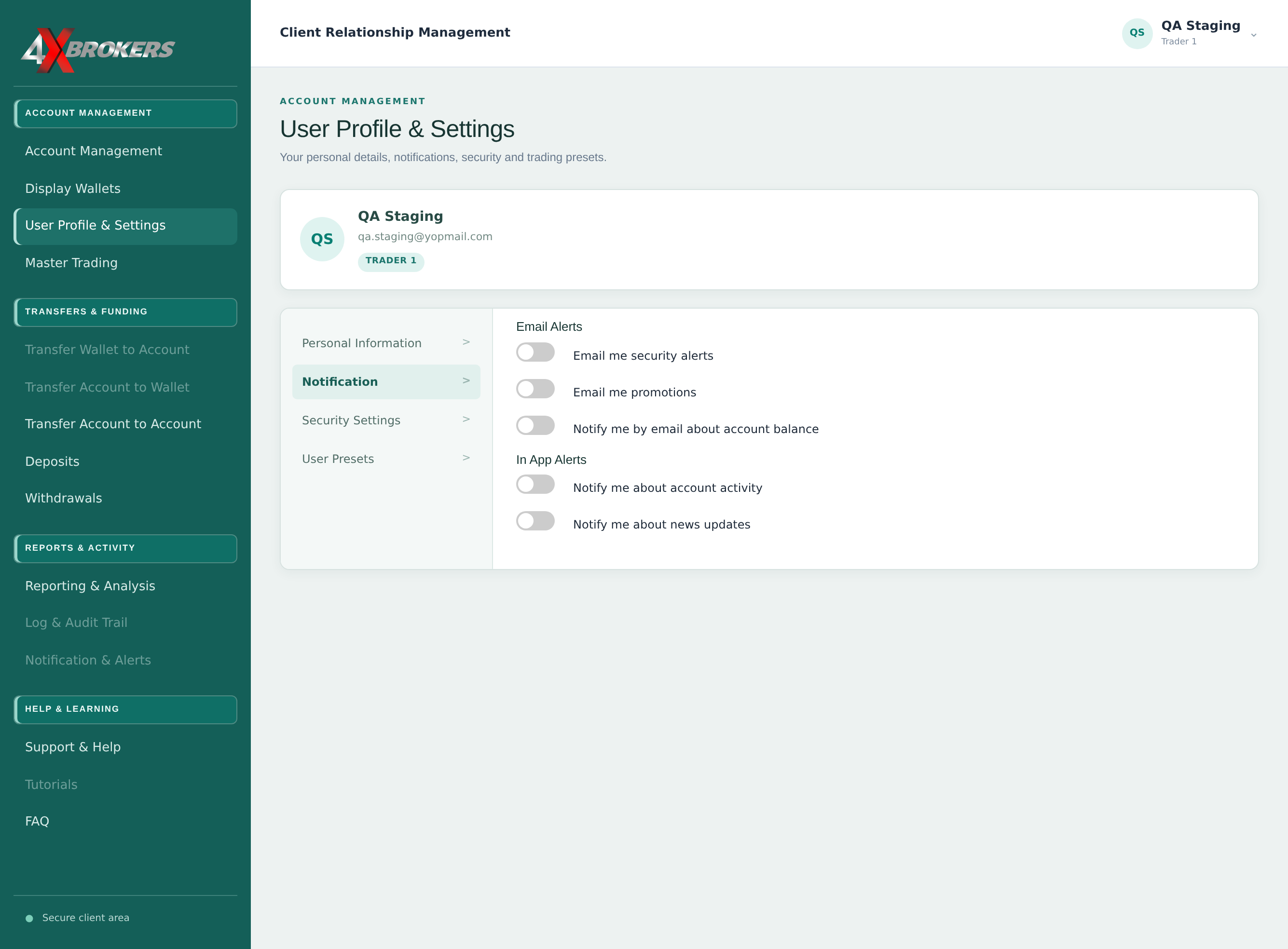
In-app alerts tell you about account activity and news updates while you use the portal.
Each change is saved as soon as you select the switch, and a confirmation message appears. There is no separate Save button.